
The DriverHub/Asurint integration allows you to initiate orders directly from within DriverHub. Once orders are completed, reports conveniently flow back into the user profile records to reduce steps for your hiring team in the recruiting process!
Table of Contents
Ordering from a User Profile
Configure Asurint Ordering in Recruiting Workflows
Tracking Orders
Notifications for Results
Ordering from a User Profile
- Navigate to the specific user’s profile.
- Click the three dots menu near the top of the profile, then select Create > Background Check Order.
- Click to select Asurint.
- Check that all the required user information fields (Social Security number, DOB, License Number, etc.) are completed. These should auto-populate from the user’s profile but if any information is missing you can add it now.
- Select the Output Record Type for the order, which Records to Send (disclosures, authorizations, consents), and the specific Product you want to order (e.g., Clearinghouse Query, Criminal Background Check, MVR).
Tip: Output Record Type refers to the kind of document you would want this to appear as in the driver's file. For example, for an MVR order, you would pick the MVR record type. You can read more about record types here. - Click Place Order.
- A link will appear that says Click here to continue. You must click this link to open the Asurint portal, review and confirm all details, and click Place Order to finalize the transaction within their site.
Important note: Always originate the order from within DriverHub. If you log into the Asurint website separately to place an order, the results will not automatically flow back into the system and will require manual downloading and uploading.


Configure Asurint Ordering in Recruiting Workflows
- Navigate to Config > Recruit > Positions and Openings.
- Open the specific Position you wish to edit.
- Scroll down to the Workflow section.
- Click Add Action at the top right of the workflow.
- From the first dropdown menu, select Asurint.
- In the second dropdown, choose which pipeline/stage you would like to place this task in.
- Configure Order Details:
- Output Record Type: Select what the record should be saved as when results return (e.g., PSP Results, MVR, Criminal Background).
- Records to Send: Select the necessary documents to accompany the order (Asurint Authorization, Asurint Disclosure, and any other relevant consents, which should already be in the workflow before configuring the Asurint ordering task).
- Product: Select the specific Asurint package to order (e.g., PSP Only Package, MVR Only, Background Screen).
- Additional Statuses that Satisfy Prerequisites: this is an optional setting that allows you to set a specific status other than Complete for this task. For example, if running the MVR is a pre-requisite for a later task in the workflow, the MVR would not yet need to be completed in order for the later task to be unlocked. This also allows for approval of an application with a status other than Complete for this order.
- Optionally configure Conditions for this task. Conditions allow you to determine who actually has task within their workflow based on the candidate's location. You can read more about Conditions here.
- Set Prerequisites: At the bottom of the configuration window, select the items that must be completed before this order can be placed (e.g., DOT Application, Signed Consent Forms).
- Note: Keep prerequisites to three or fewer for a Green status on the prerequisite badge. Four to six prerequisites will turn the badge Yellow, and seven or more will turn it Red. The color coding does not impact functionality, but aligns with our recommendation to limit the amount of prereqs on any given task.
- Click Add. This will add the task to the bottom of the previously selected workflow stage.
- If needed, drag the new task to the correct order within the column.
You are now ready to order from within workflows!


Tracking Orders
You can track Asurint orders in three places:
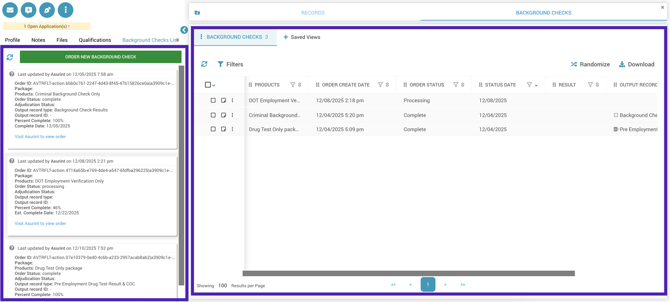
- On the user’s profile, open the three dots menu, then View > Background Checks List to view a card-view list of all orders on the left of the user’s profile.
- On the user’s profile, open the three dots menu, then View > Background Checks Browser to view a browser-view list of orders.
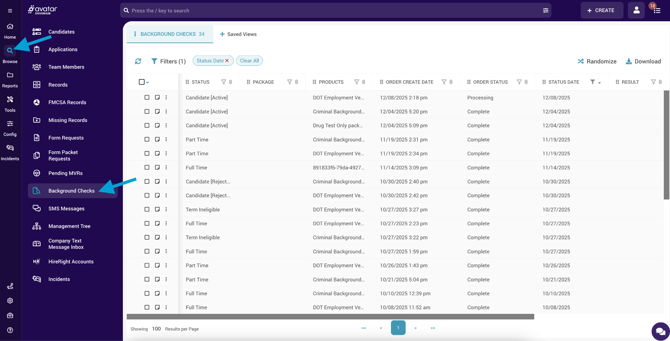
- To view all orders made for all users, use the left-hand navigation menu to click on Browse > Background Checks Browser.

Notifications for Results
To receive alerts when a background check is completed, you can set up Record Notifications for the record types that the background check results are configured to return as. Each manager/recruiter must configure this within their own account. For more information on how to set these up, click here.