
When new customers implement DriverHub, they sometimes bring incomplete or missing driver records that cannot be retroactively corrected. Without a way to formally explain these gaps, you face serious compliance risks, failed audits, and liability exposure.
This article will show you how to solve this problem by using the Memo Creation feature. You will learn how to create official audit memos that serve as placeholders for missing records, allowing you to close compliance gaps, onboard faster, and face audits with confidence.
How to Create Audit Memos in DriverHub
Table of Contents:
-
Summary/Introduction
-
How it Works & Key Benefits
-
Step-by-Step Instructions
-
Step 1: Access the Audit Memo Feature
-
Step 2: Use the Mass Action Tool
-
Step 3: Create an Audit Memo
-
Step 4: Alternative Method to Create an Audit Memo
-
Step 5: Finalize the Audit Memo Creation
-
Step-by-Step Instructions/Details:
1. Step 1 - Access the Audit Memo Feature:
-
Instruction: Start by navigating to the Browse option in your main menu, then select the Records option.
-
Context: This will take you to the central repository of all driver records where you can identify gaps.
2. Step 2 - Use the Mass Action Tool:
-
Instruction: Utilize the Mass Action Tool by selecting the checkbox next to the desired failed or missing record.
-
Context: This tool allows you to target specific records that need a placeholder.
3. Step 3 - Create an Audit Memo (0:27):
-
Instruction: Click on the More option, select Create from the drop-down menu, and choose Audit Memos.
-
Context: You will be prompted to confirm by person or by record type before adding the memo.
4. Step 4 - Alternative Method to Create an Audit Memo (1:16):
-
Instruction: Click into an individual record type directly.
-
Context: If the record type does not have an assignment and requires an attachment—or if the record is currently marked as not compliant—the system will give you the option to create an audit memo right from that screen.
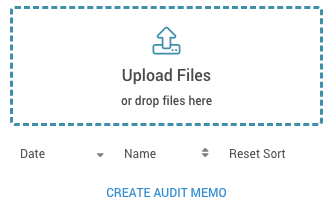
5. Step 5 - Finalize the Audit Memo Creation (1:16):
-
Instruction: Click Create Audit Memo from the record type.
-
Context: The system will automatically generate the audit memo. It will be attached to the driver’s profile in place of the missing record, serving as its official placeholder.
Additional Information/Troubleshooting Tips:
-
How it Works: When a record shows a failed status or zero attachments, the newly created Memo gets strictly associated with that failed or missing record.
-
The Value: Stay audit-ready, even when records aren't perfect. Memo Creation ensures that every gap in your driver documentation has a formal explanation on file.
-
Close Compliance Gaps: Create an official record ensuring your audit trail is complete.
-
Faster Customer Onboarding: Eliminate the anxiety of going live with incomplete historical records without holding up implementation.
-
Increase Confidence: Have peace of mind knowing that every failed or missing record is accounted for.
-