
Table of Contents
Setting a Great First Impression
Customizing Candidate Messaging
Turning Off Candidate Messaging
Setting a Great First Impression
When a candidate expresses interest via your company’s Landing Page, first impressions are everything. By default, the system sends an automated text and email to confirm receipt and provide a link to the full application; this article will show you how to customize those messages to fit your company's unique voice.
Default text message: 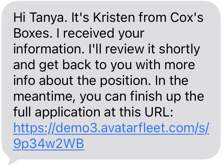
Default email: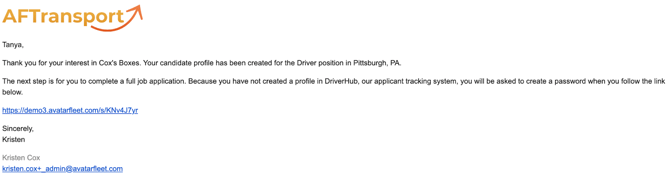
Customizing Candidate Messaging
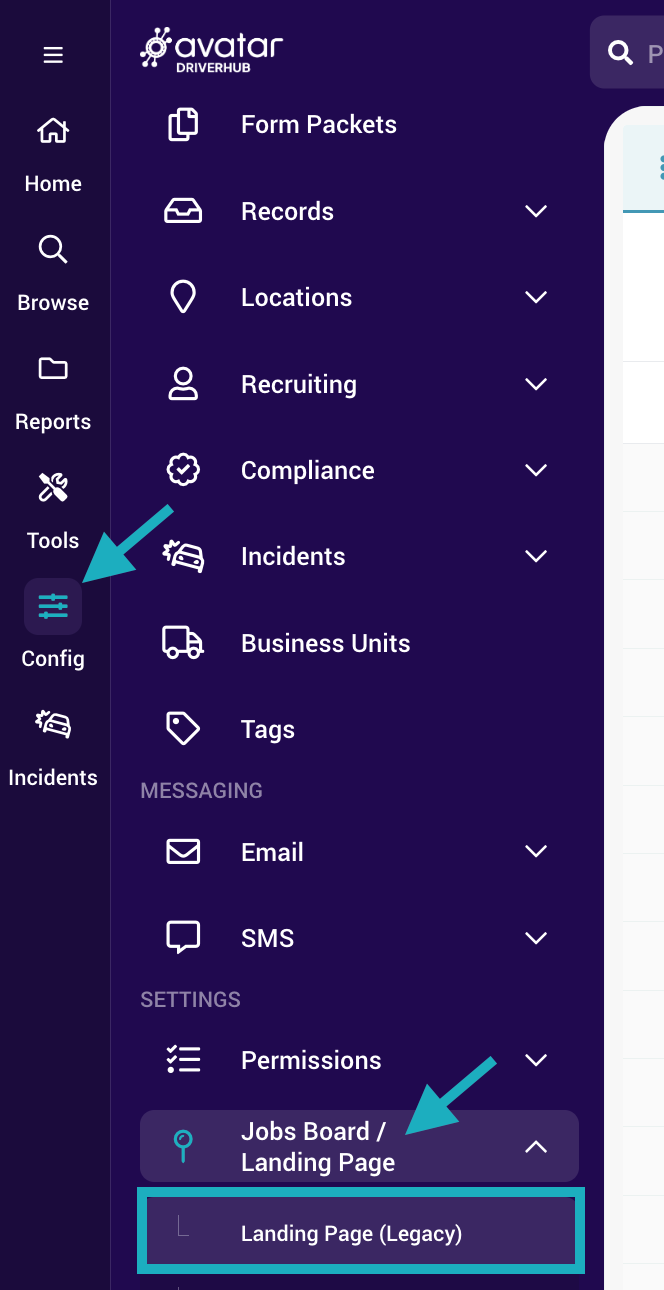
- Navigate to Config > Jobs Board/Landing Page > Landing Page. This will open a configuration window containing various settings.
- Scroll past the general configuration settings to the very bottom of the window.
- At the bottom, you will see two specific fields: one designated for the Text Message and one for the Email.
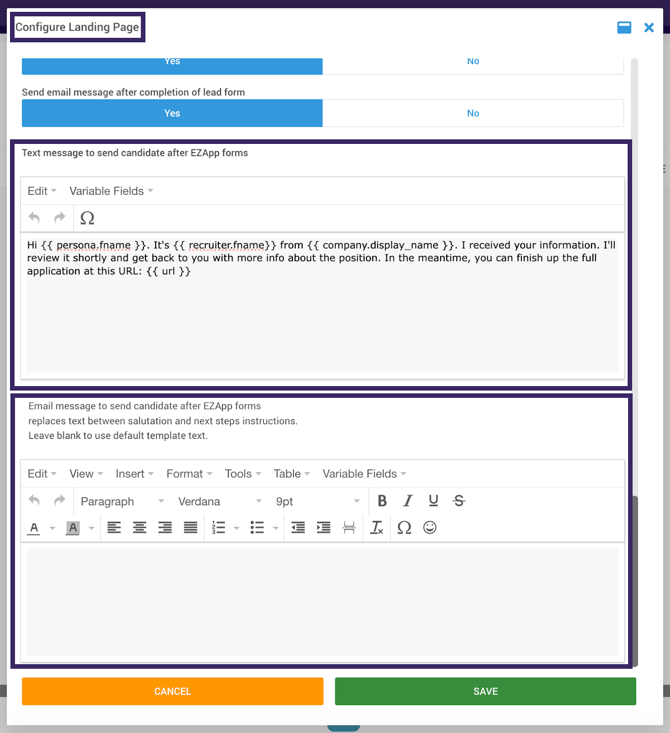
- Customize your messaging:
- For Text Messages: You can entirely replace the default text with your own custom messaging.
- For Emails: Your custom text will replace only the section between the system salutation (Hello [Name]) and the "Next Steps" instructions. If you leave this field blank, the system will use the standard default message.
- Click Save to save your changes.
Tip: Use Variable Fields in both areas to automatically pull in the candidate's name or specific job/company details.
Turning Off Candidate Messaging
While it is not recommended, it is possible to turn off automated messaging to candidates. If you would like to turn off either or both of these automated messages, you can use the toggles right above the field to edit the candidate text message, as shown in the image below.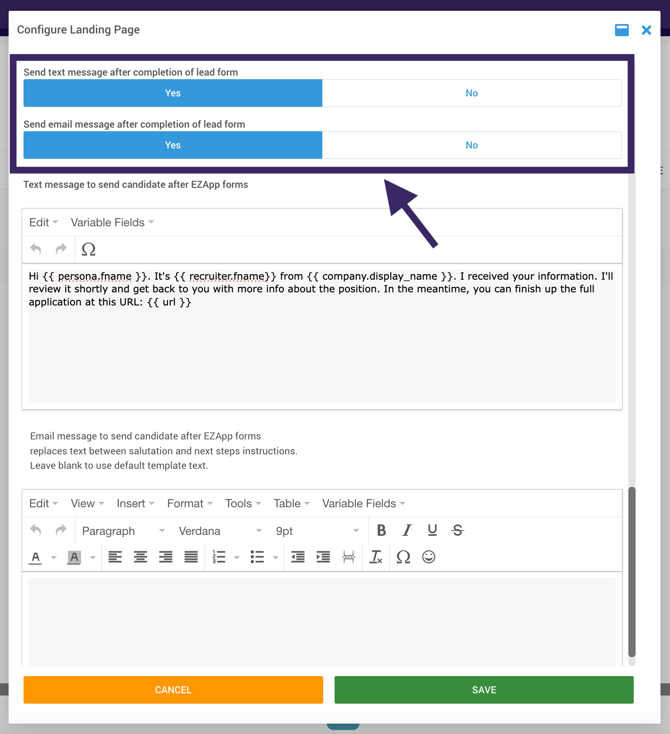
If you need more help with these configurations, please contact our Support team.