
Business Units are structural components designed to allow organizations to track separate companies or divisions distinctly within the system. Although Business Units are lightweight in terms of broad system functionality, they serve two primary purposes:
-
Filtering: They provide an additional method to filter users by within the Team Member Browser.
-
Landing Page Segmentation: They allow for filtering landing pages for clients requiring multiple distinct pages. Please note: This specific use case requires development work, as additional landing page sites must be created. If you need more than one Landing Page for your DriverHub account, please reach out to your Client Success Manager.
Business Units can be assigned to Jobs, Locations, Regions and Super Regions. If a candidate is hired into a Job or Location that already has a Business Unit assigned to it, that Business Unit will automatically appear on the new team member's profile upon hire.
How to Create a Business Unit
Follow the steps below to add a new Business Unit to your configuration:
-
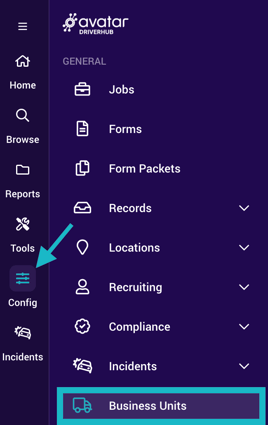
Navigate to Config > Business Units.
-
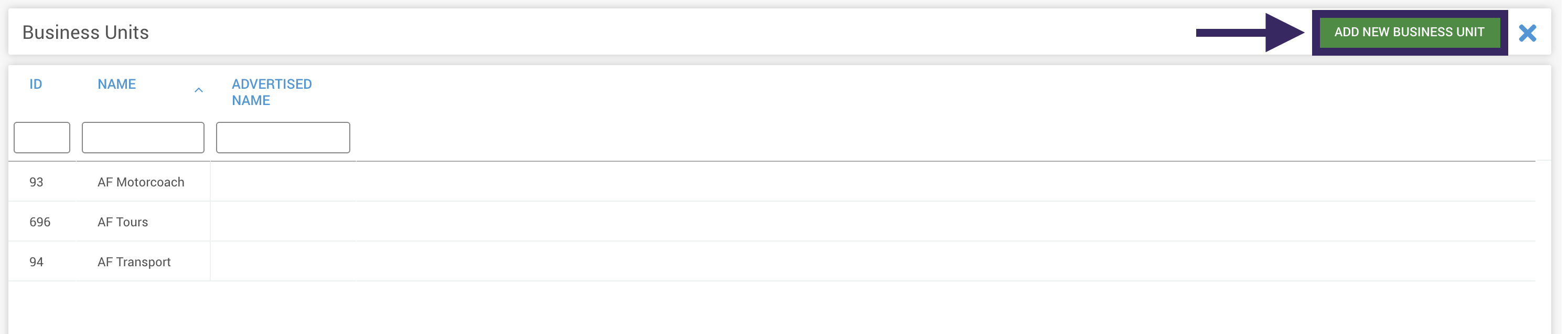
Click on the Add New Business Unit button.
-
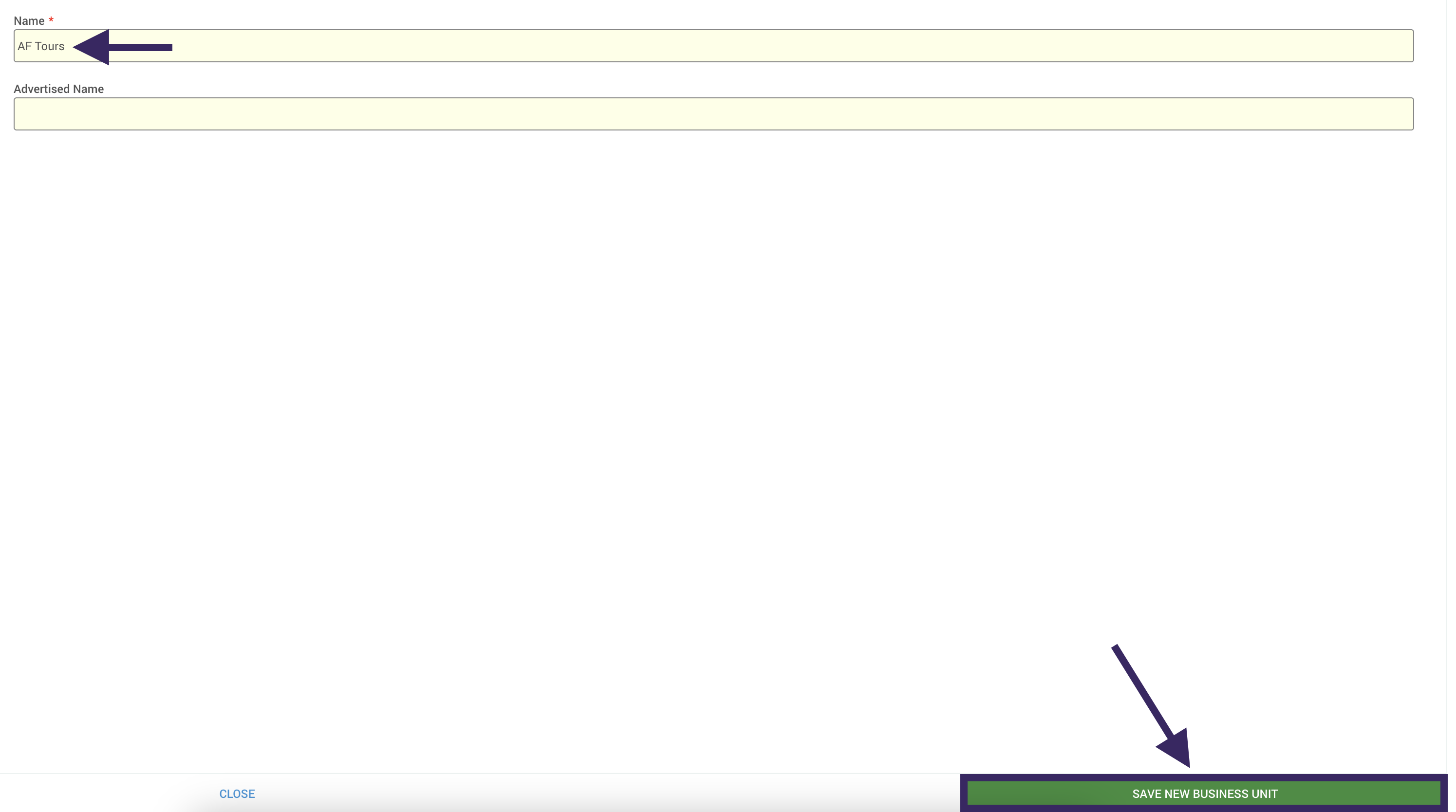
Enter the desired Name for the Business Unit in the text field.
-
Click Save New Business Unit.
-
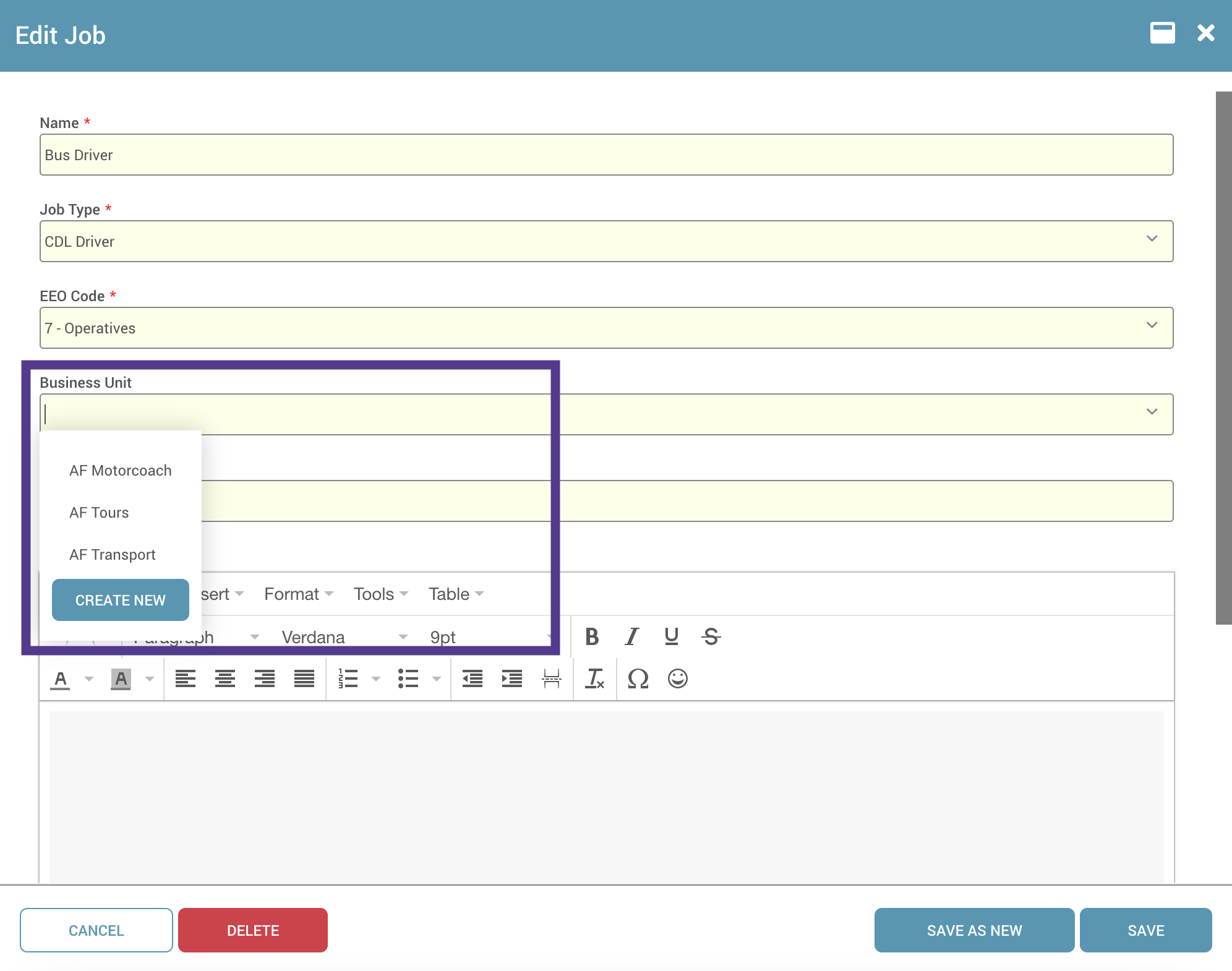
Once created, you must configure the Business Unit by assigning it to the specific Jobs, Locations, Regions, or Super Regions required by your organizational structure. Each of those items will have a Business Unit field where one can be selected.
WARNING: Business Units cannot be deleted once created. Please ensure the naming convention and necessity of the unit are confirmed before finalizing creation.