Step-by-Step Instructions
- Navigate to the driver's profile. You can do this in two ways:
- Click the Browse icon and select the Team Member Browser to find the driver.
- Use the Search bar at the top of the screen to type the driver's name directly.
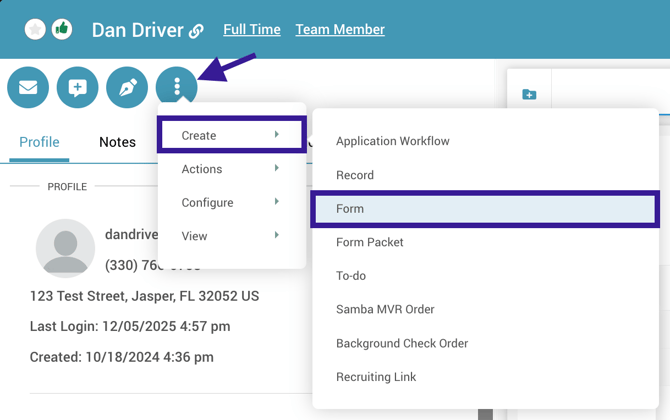
- Once inside the driver's profile, locate the three dots menu located immediately underneath the driver's name. Click this icon and select Create > Form.
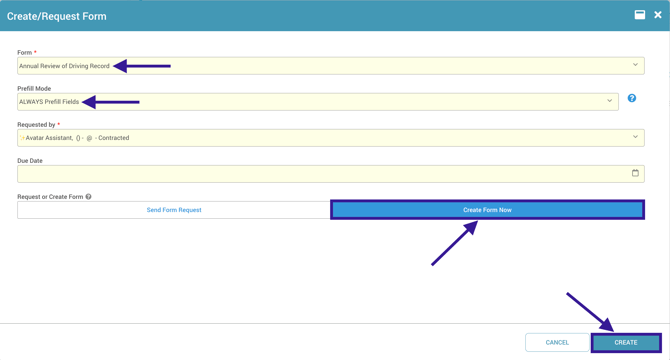
- Use the dropdown menu to search for and select the Annual Review of Driving Record form.
- Set the prefill mode to ALWAYS Prefill Fields. This allows the form to automatically populate compatible fields with existing profile information.
- Toggle Request or Create Form to Create Form Now, then click Create on the bottom right. This will open the form so that you can complete it right from the driver's profile.
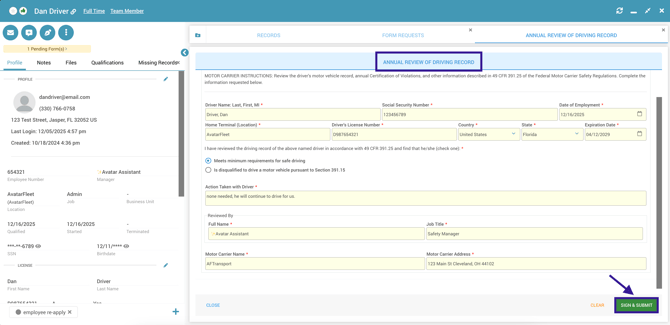
- Complete all required fields that are not already completed, then click Sign & Submit.
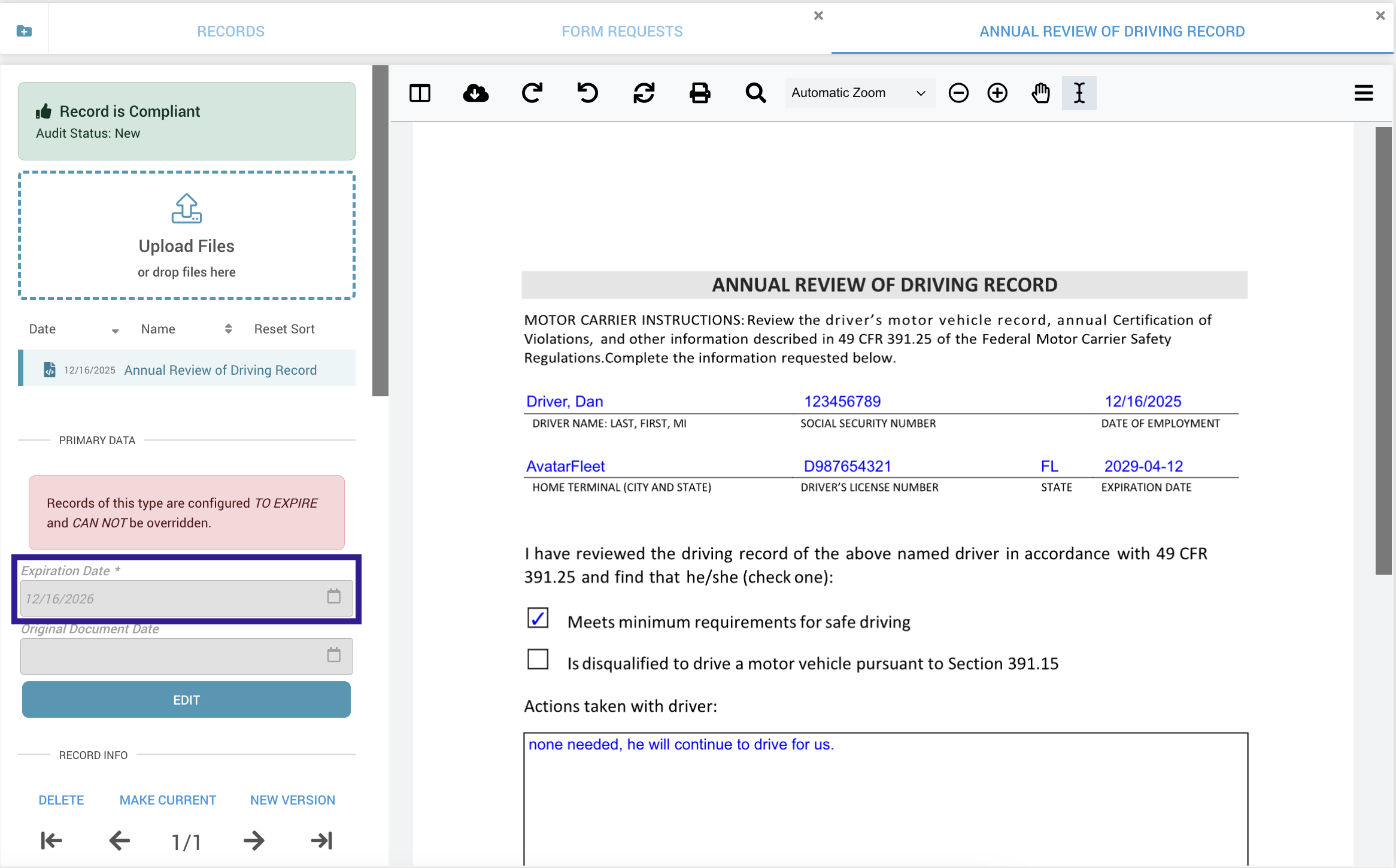
- Once submitted, the Annual Review of Driving Record is saved immediately to the driver's profile as a signed PDF, which automatically expires a year after the form was completed.