
Table of Contents
What are Conditional Forms and Task Groups?
How to Use Conditional Forms
Organizing with Task Groups
Recruiter and Candidate Experience
What are Conditional Forms and Task Groups?
With Conditional Forms and Task Groups, you can build one master workflow that adapts on the fly. Whether it’s a state-specific consent form or a policy document for internal transfers, you can tell the system exactly when to show a task and when to hide it.
Think of this feature as your automated traffic controller. It allows you to set specific rules that show or hide tasks based on location.
- For the candidate: It keeps things clean. They only see the forms they actually need to sign. No clutter, no confusion.
- For you: You get to sleep easier knowing state- and county-specific forms are never missed, without having to maintain multiple custom workflows.
Imagine you’re hiring drivers in the Pacific Northwest.
- The Problem: Washington state requires a specific DRRI form before you can run an MVR. Oregon doesn't require that form.
- The Old Way: You build a "Washington Workflow" and an "Oregon Workflow."
- The Better Way: You build one workflow. You add the "Washington DRRI" form and set a condition: Only show this if the Position Opening Location OR the Profile Address is in Washington.
- Result: A Washington applicant sees the form and signs it. An Oregon applicant skips it entirely. You manage one workflow. Everyone wins.
How to Use Conditional Forms
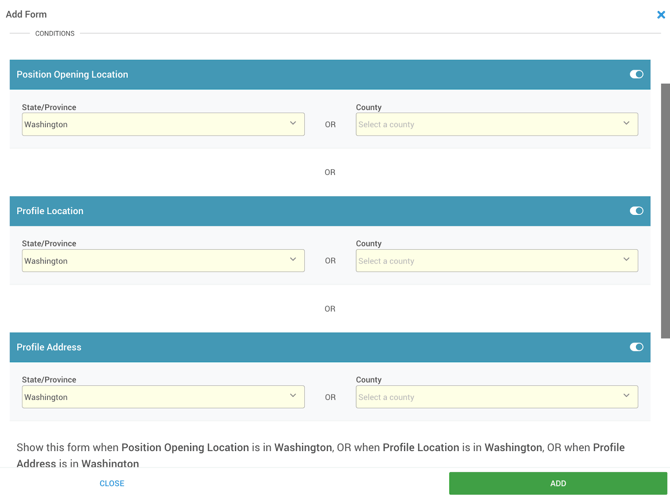
You set the conditions, and the system handles the heavy lifting using "OR" logic. This means if any of your conditions are met, the task pops up. If not? It stays invisible.
Any form or action you add to a workflow will have a section for Conditions in the configuration for that task. You can trigger these rules based on three types of location data:
- Profile Address: This is the candidate location, where the applicant actually lives.
- Position Opening Location: Where the opening itself is based.
- Profile Location: Where a candidate is currently working (this is useful for internal transfer applications).
Organizing with Task Groups
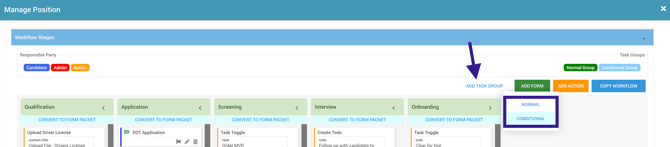
Want to take it a step further? You can bundle tasks together using Task Groups. They come in two flavors:
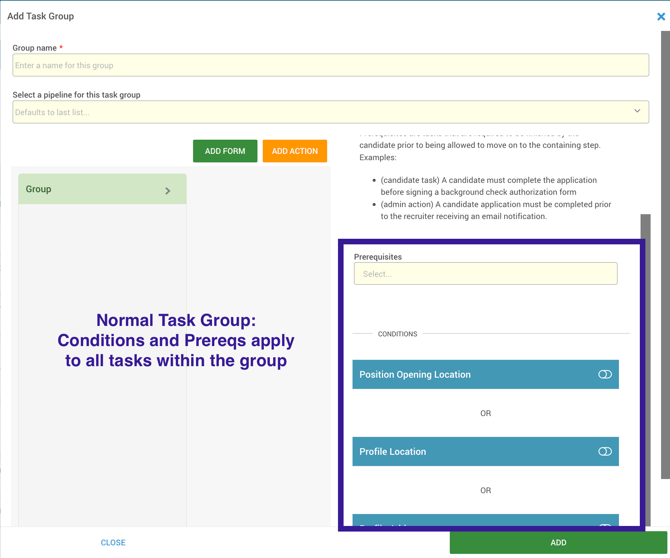
- Normal Task Groups: bring tasks together for easier management. Prerequisites and conditions set at the group level apply to all tasks within it.
- Conditional Task Groups: similar to normal groups, but with the ability to set a condition for each task, as well as a default task if none of the conditions are met. This is particularly useful for State Tax forms!

Recruiter and Candidate Experience
We’ve designed this so you get full control while the candidate gets a smooth ride.
- The Candidate View: If a task or group is hidden because they don’t meet the criteria, they won’t even know it was there. They just flow right to the next step.
- The Recruiter View: Tasks and groups that don’t apply to a candidate will not appear in their workflow. If a conditional task does appear in a workflow, there will be an icon to the left that you can click to see what condition was met.