Create the User Profile
First, you must create the user account and define their basic settings.
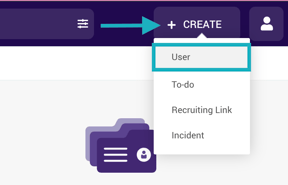
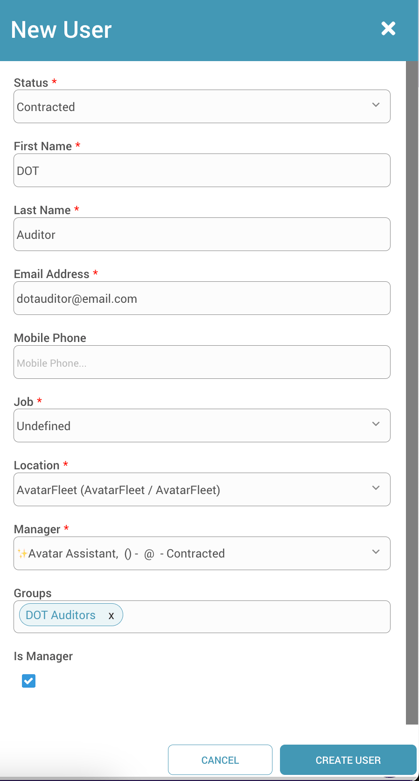
- Click Create > User at the top right of DriverHub and fill in the following fields:
- Status: Set to Contracted.
- Name: enter the user’s first and last name.
- Email: enter the user’s email address.
- Job: Set to Undefined.
- Location: Select the appropriate location.
- Manager: Assign their internal point of contact/manager.
- Groups: Add them to the DOT Auditors group.
- Important: Check the box labeled Is Manager.
- Click Create User.
Welcome Email and Visibility Configuration
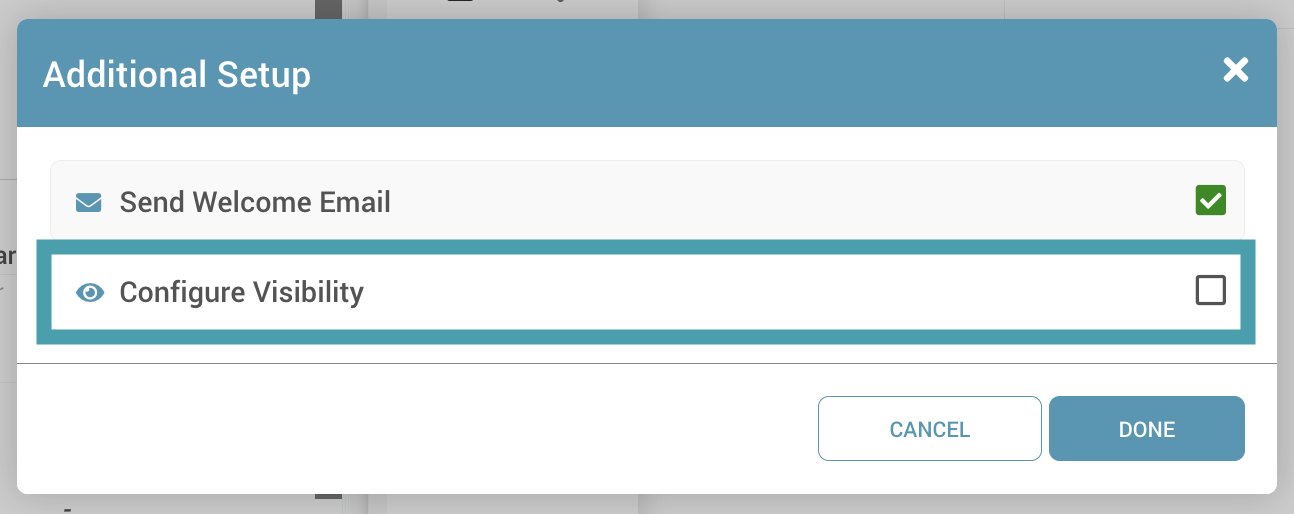
Upon profile creation, you will see a small window with options to Send a Welcome email and Configure Visibility.
- Click on Send Welcome Email so the auditor can set up their login credentials.
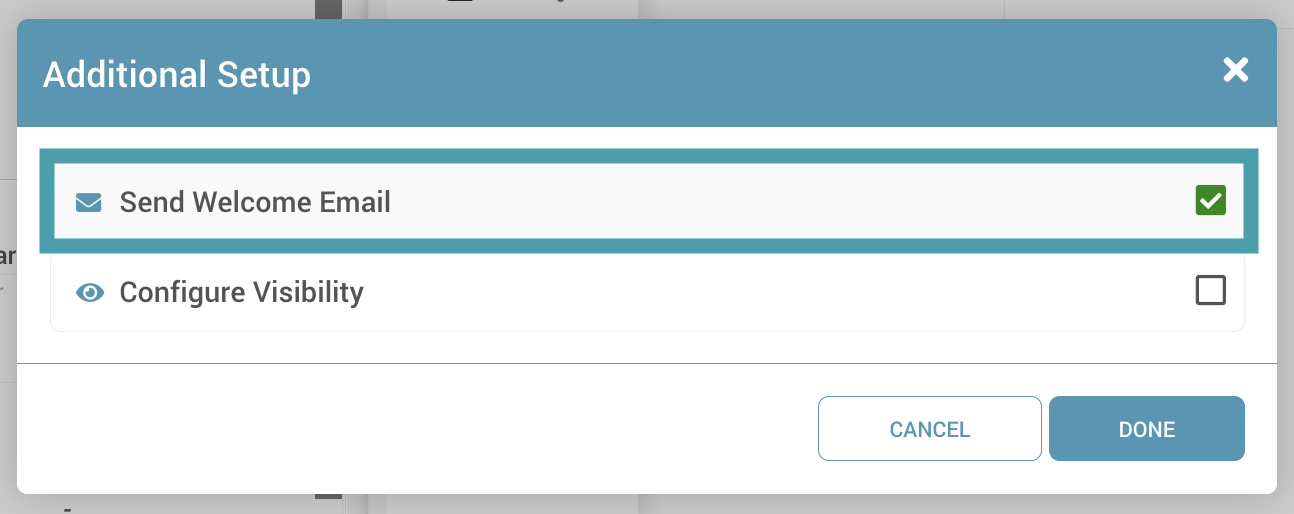
- Click on Configure Visibility to set up which profiles they can see.
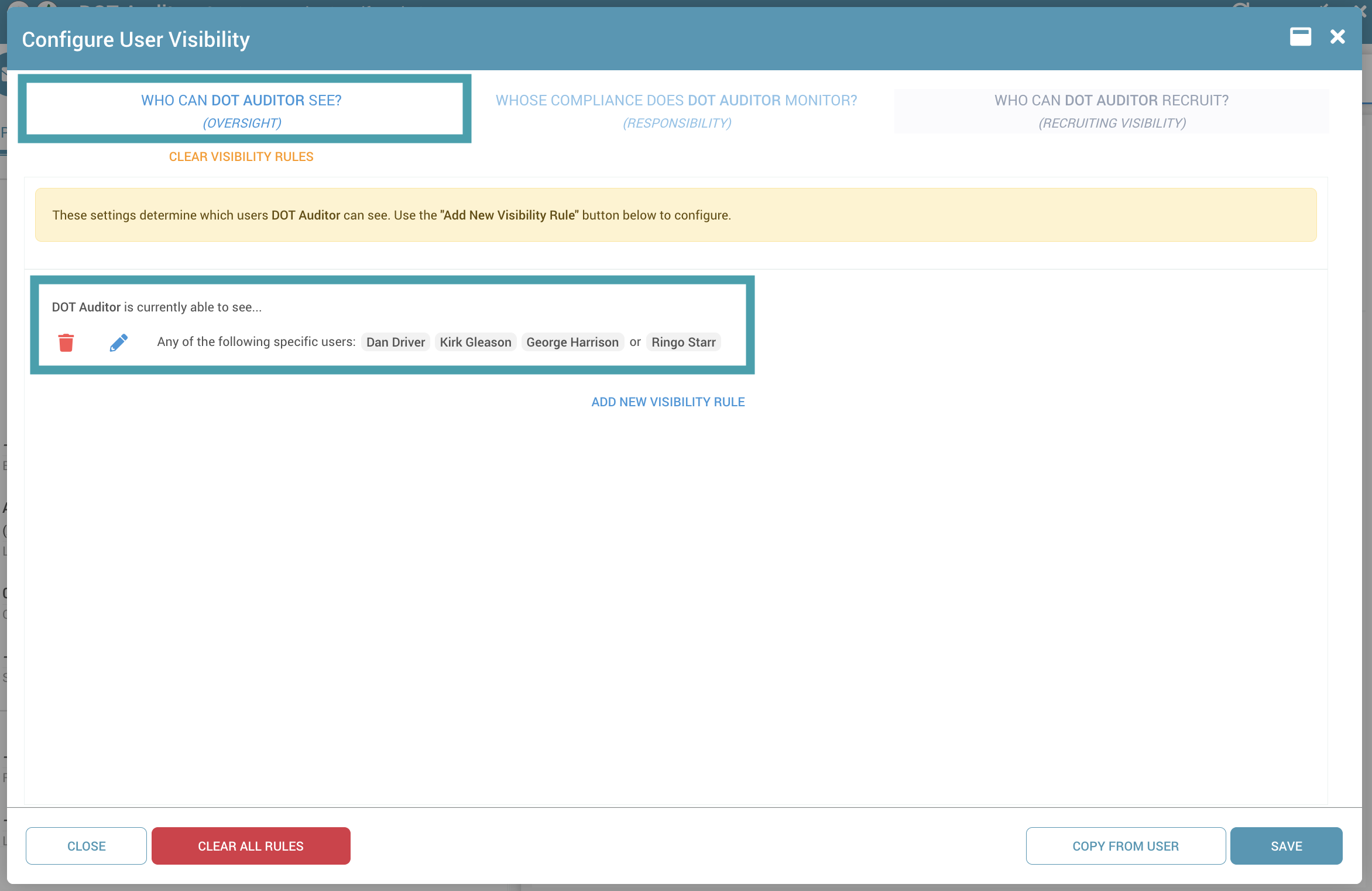
- Click the pencil icon (Edit) next to the Oversight section.
- Remove any default rules by clicking the red trash can icon.
- Click on Add New Visibility Rule.
- Select the option to Configure Specific Users.
- Add the specific drivers or individuals this auditor needs to review.
- Click Save.
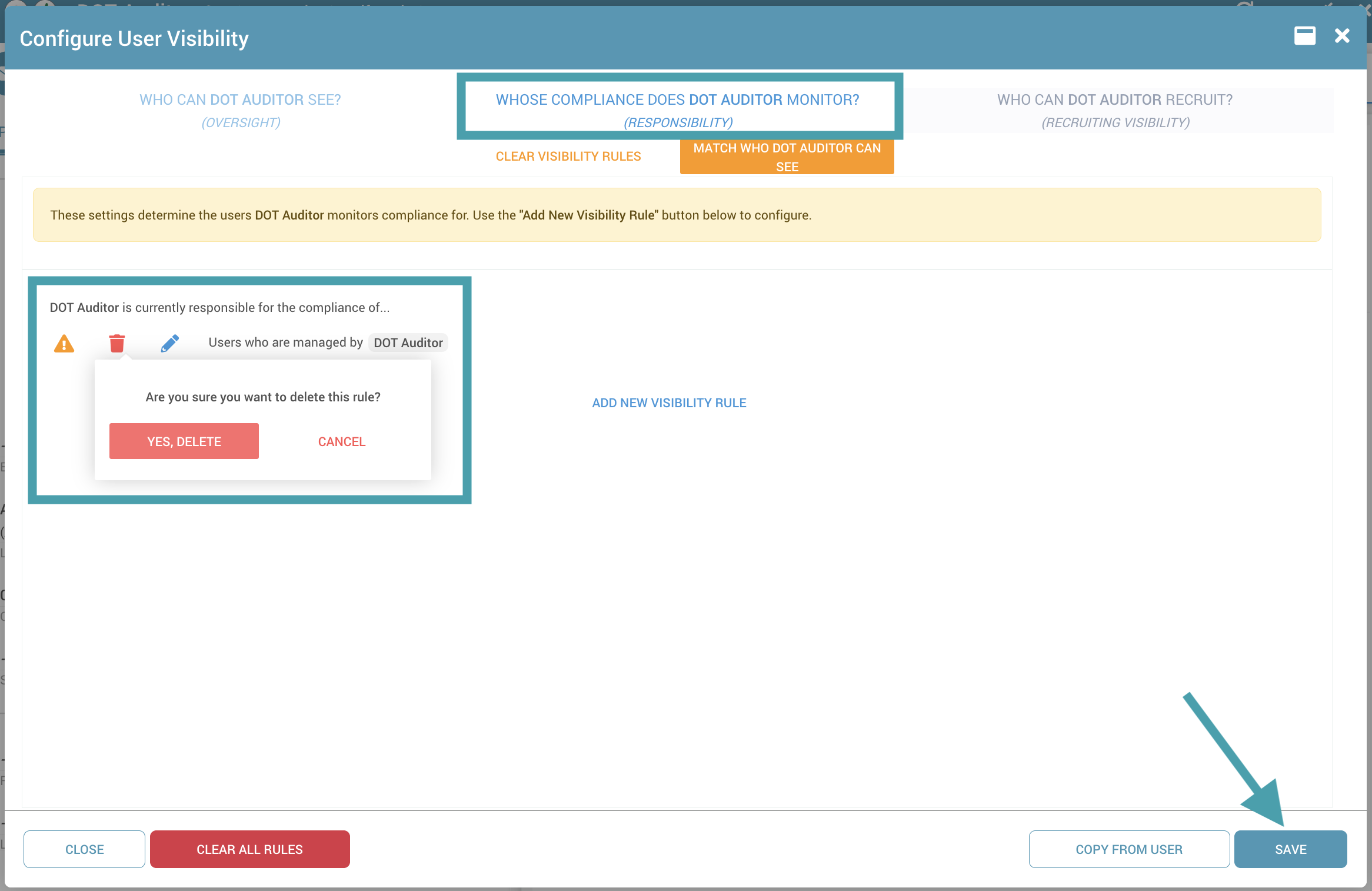
- Click the pencil icon (Edit) next to the Responsibility section.
- Delete the existing rule found there.
- Click Save.
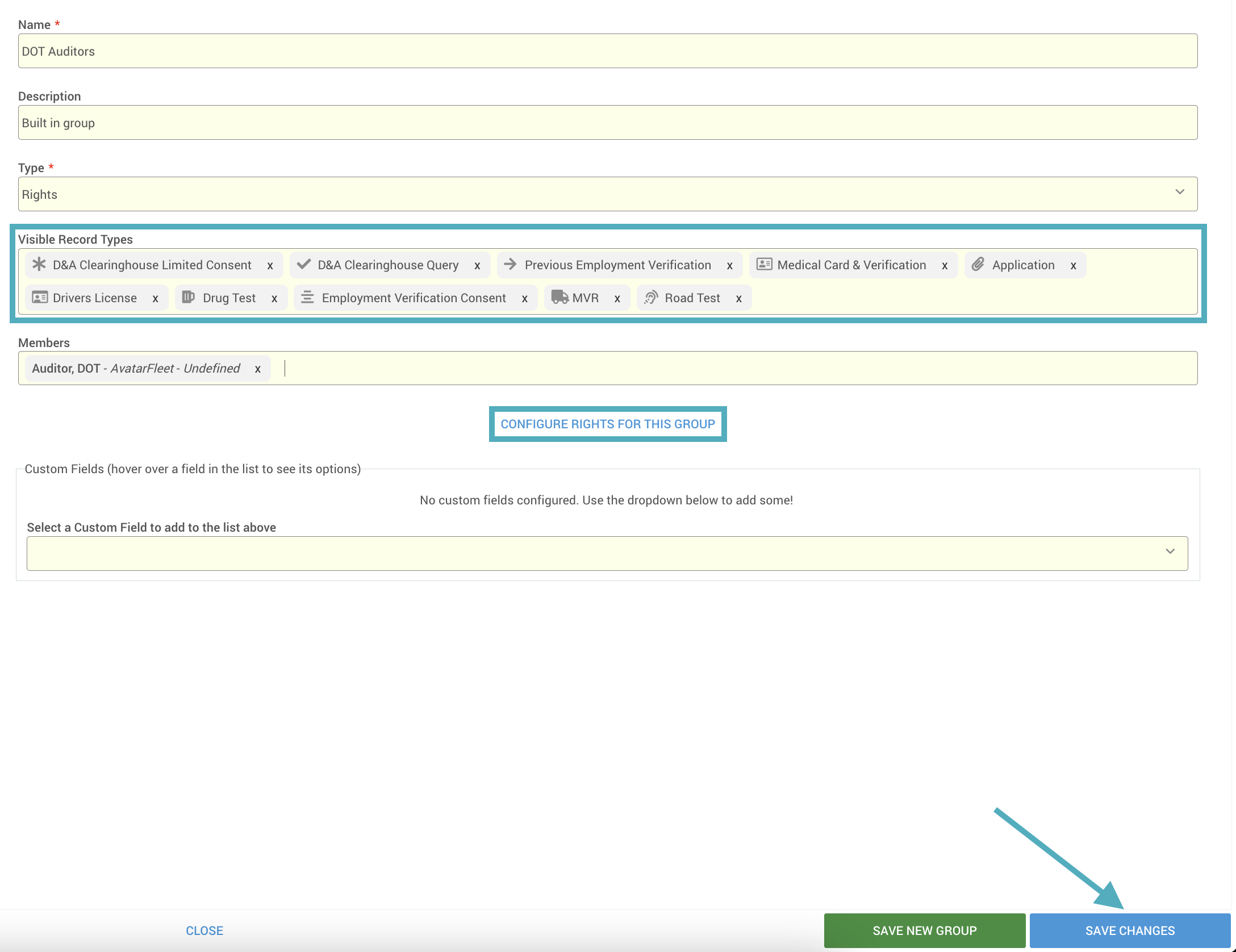
Configure Group Permissions
You must now set what record types the auditor can view and what actions they can take in the system.
- Navigate to Config > Permissions > Groups.
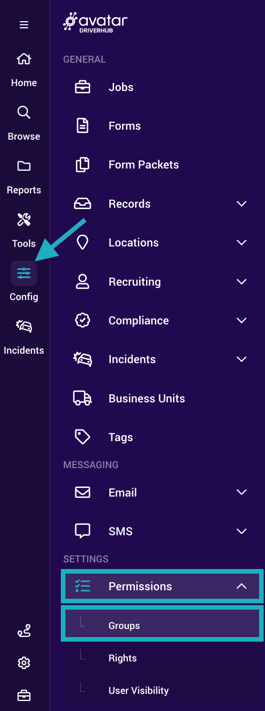
- Select the DOT Auditors group.
- Set Visible Record Types: Select which types of records the auditor is allowed to see.
- Set Rights: Configure the specific actions the group can take by choosing from the list of rights available in the system. At a minimum, we recommend adding the following rights:
- Access Management UI
- Advanced Search
- Create Record Notes
- Create User Notes
- Edit Own Record Notes
- Edit Own User Notes
- View Menu Option to Open Support Ticket
- View Menu Option to Open Knowledge Base
- View Menu Option to View Records Browser
- View Menu Option to View Team Member Browser
- View Records on User Profile
- View Summary on User Profile
- Click Save Changes.