
This article explains how to open the Help Center, what each section contains, and how to get the most out of every resource available to you.
Table of Contents1. Opening the Help Center
2. Help Center Sections
- Chat with the AvatarAssistant
-
DriverHub How To Guides
-
Knowledge Base
3. Troubleshooting Tips
4. Frequently Asked Questions
5. Summary
1. Opening the Help CenterThe Help Center is available from every screen in DriverHub — you never need to navigate away from your work to get support.
|
1 |
Locate the Help Center icon • Look for the teal information icon (ⓘ) fixed to the far right side of your screen. • This icon is visible no matter where you are in DriverHub. |
|
2 |
Click the icon to open the Help Center panel • A panel will slide open from the right side of the screen. • You do not need to leave your current page — the Help Center overlays your view. |
|
3 |
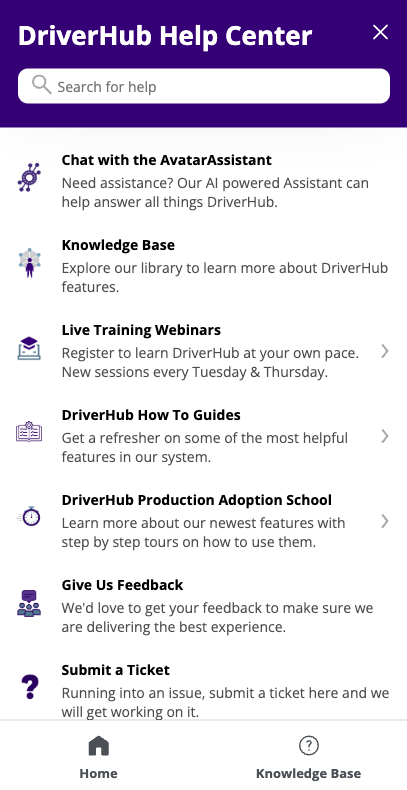
Explore the key sections displayed in the panel • Avatar Assistant — an AI-powered chat for instant answers. • Knowledge Base — searchable articles. • Webinars — sign up for weekly training sessions. • How To Guides — guided tours of key DriverHub features. |
2. Key Help Center Sections
Chat with the AvatarAssistant
The AvatarAssistant is an AI-powered chat built into the Help Center. It can answer questions about DriverHub features, guide you through common tasks, and point you to the right article or walkthrough — all in real time.
- Open the Avatar Assistant from the Help Center panel.
- Type your question in plain language — for example, "How do I add a new driver?" or "Where do I find compliance reports?"
- The Assistant responds instantly and can link you directly to relevant Knowledge Base articles or walkthroughs.
Knowledge Base
The Knowledge Base is a library of written articles that cover DriverHub features, common workflows, and troubleshooting steps. It is available on-demand and fully searchable.
- Access the Knowledge Base from the Help Center panel by selecting the Knowledge Base section.
- Use the search bar to find articles by keyword — for example, type "compliance" or "driver profile" to locate relevant content quickly.
- Articles are organized by topic and include step-by-step instructions, screenshots, and video walkthroughs where applicable.
- If you don't find what you need, try rephrasing your search or contact support directly from the panel.
How To Guides
How To Guides are step-by-step guided tours built directly into DriverHub. They are ideal for learning a new feature or refreshing your knowledge of a process without leaving the platform.
- Launch a walkthrough by selecting it from the Help Center panel.
- Walkthroughs highlight the relevant buttons, fields, and menus on your current screen as you progress.
- You can pause or exit a walkthrough at any time and return to your work.
- Walkthroughs are organized by topic — browse to find the one most relevant to your task.
3. Troubleshooting Tips
|
Issue |
What to Do |
|
Help Center icon is not visible |
Refresh your browser tab. If the icon still does not appear, confirm with your administrator that the Help Center is enabled for your account. |
|
A walkthrough does not start or stalls mid-step |
Refresh the page and relaunch the walkthrough from the Help Center panel. If the issue persists, try a different browser or clear your cache. |
|
Knowledge Base search returns no results |
Try shorter or broader search terms. For example, use 'driver' instead of 'adding a new driver record.' |
|
Avatar Assistant is unresponsive |
Close and reopen the Help Center panel. If the issue continues, use the contact support option within the panel to reach the support team directly. |
4. Frequently Asked Questions
Q: Can I access the Help Center on any page in DriverHub?
Yes. The teal information icon is available on every screen within DriverHub. Simply click it to open the Help Center panel from wherever you are.
Q: Do I need a separate login to use the Knowledge Base or Avatar Assistant?
No. The Help Center is fully integrated into DriverHub. As long as you are logged in to DriverHub, you have access to all Help Center resources without any additional credentials.
Q: Can I replay a system walkthrough after completing it?
Yes. Walkthroughs are available on demand. Open the Help Center panel, navigate to System Walkthroughs, and relaunch any walkthrough at any time.
5. SummaryThe DriverHub Help Center gives you everything you need to learn the system and get support — right where you work. By clicking the purple icon on the right side of any screen, you can instantly access:
- System Walkthroughs for guided, in-app feature tours
- The Knowledge Base for searchable articles and step-by-step guides
- The Avatar Assistant for AI-powered, real-time answers
No more switching tabs or searching external sites — your support tools are always one click away.