
Managing driver screenings shouldn't mean juggling two platforms. The DriverIQ (Cisive) integration lets your team order Motor Vehicle Records (MVRs), PSP reports, Previous Record of Employment (PRE) database checks, criminal background checks, employment verifications, and drug & alcohol screenings from within DriverHub — with results flowing back automatically to each driver's profile.
Connecting DriverIQ to DriverHubBefore your team can place orders, an administrator needs to enter your DriverIQ account credentials in DriverHub. Cisive provides these credentials when your account is set up.
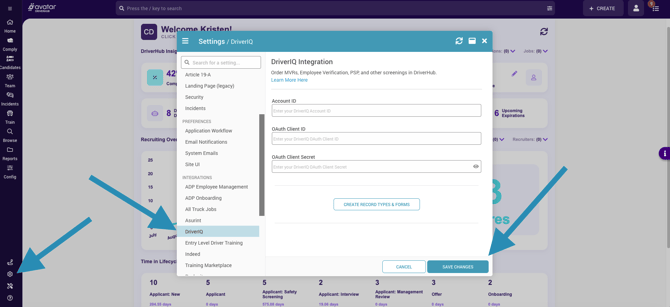
- Open Settings — Click the Settings gear icon at the bottom of the left navigation menu.
- Select DriverIQ — Under the Integrations section in the left panel, click DriverIQ.
- Enter your credentials — Fill in the following three fields:
- Account ID — Your DriverIQ Account ID, provided by Cisive.
- OAuth Client ID — Your OAuth Client ID, provided by Cisive.
- OAuth Client Secret — Your OAuth Client Secret, provided by Cisive.
- Create Record Types & Forms — Click the Create Record Types & Forms button to generate the record types and forms associated with the DriverIQ integration.
- Save Changes — Click Save Changes to activate the integration.
Note: If you don't have your credentials yet, contact your Cisive account representative before proceeding.
Ordering from a User ProfileYou can place a DriverIQ screening order from any driver or candidate's profile at any time — no recruiting workflow required.
- Navigate to the user's profile — Find the driver or candidate in DriverHub.
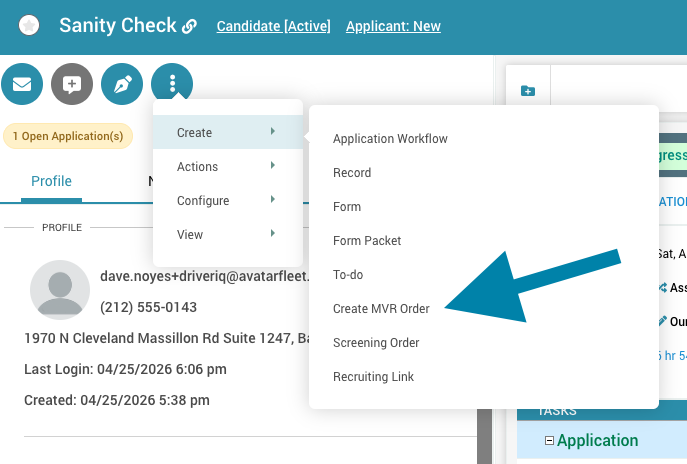
- Open the actions menu — Click the three dots menu near the top of the profile.
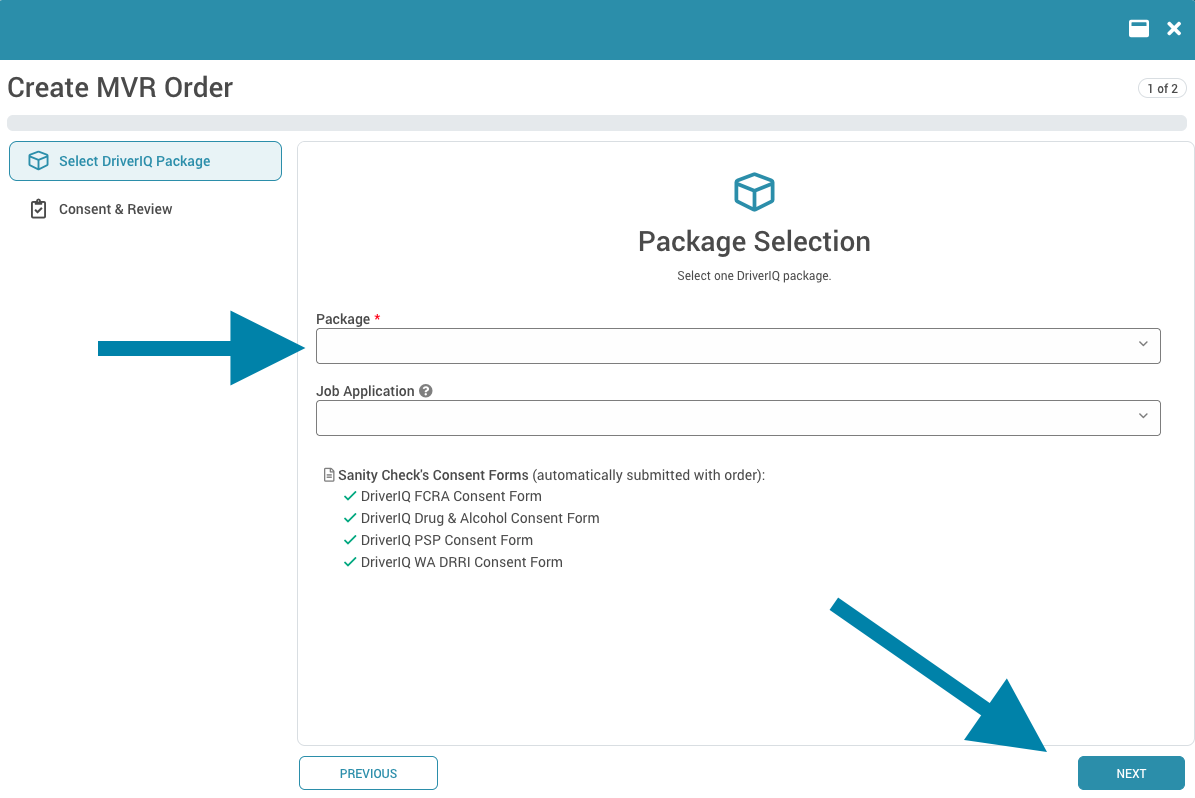
- Select Create > Create MVR Order or Screening Order — Choose the order type from the menu.
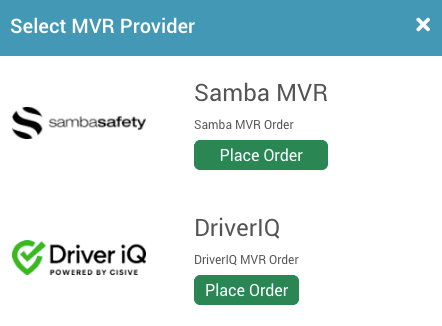
- Choose DriverIQ — Select DriverIQ from the available providers.
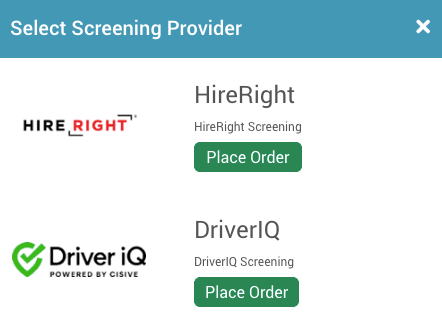
- Select your screening — Choose the screening type and select the appropriate Output Record Type, which determines how the result will be filed on the driver's profile once it returns.
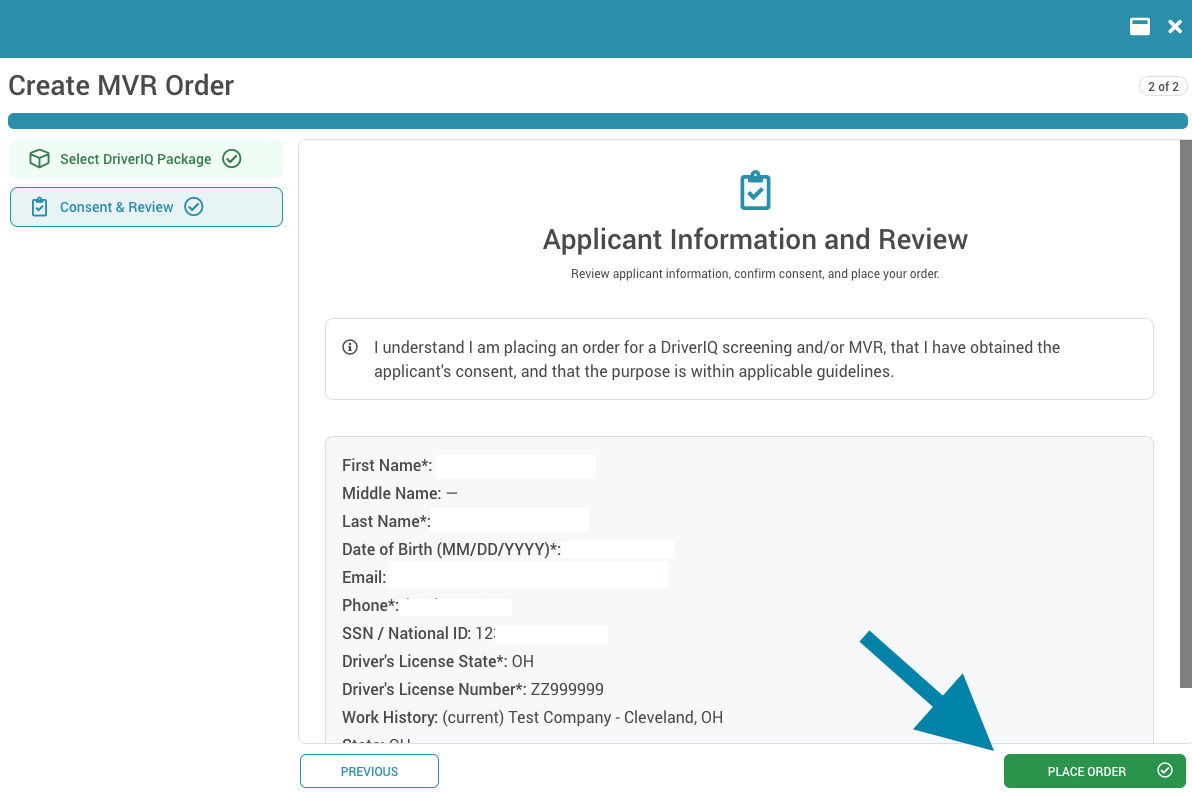
- Place the order — Review the details and click Place Order.
Ordering from a Recruiting Workflow
You can also add DriverIQ screening as a step inside a recruiting workflow. This prompts the recruiter to place the order at the right stage in the hiring process — no manual reminders needed.
- Navigate to your workflow — Open the position or job whose workflow you want to update.
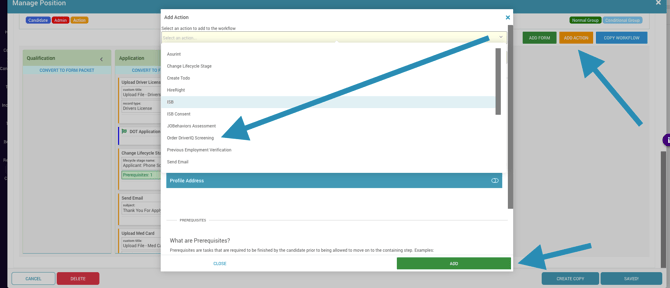
- Add a new action — Click Add Action in the workflow builder.
- Select Order DriverIQ Background Check — Choose this option from the action type dropdown.
- Configure the action — Choose the pipeline stage for this step and select the screening product to be ordered.
- Save the workflow — Save your changes to activate the action.
Ordering Drug & Alcohol
DriverHub's DriverIQ integration allows users to order Drug & Alcohol tests for drivers directly from within DriverHub. However, the location and facility where the driver will perform the test cannot be selected in DriverHub. To assign a testing location or facility, users must navigate to DriverIQ to complete that step.
Criminal Background Checks
When a criminal background check is ordered without the required consent signed by the individual being screened, DriverIQ automatically contacts either the driver or the recruiter to collect the necessary authorization before the check can proceed. While this step happens automatically, it does extend the overall turnaround time for the background check.
Viewing Results
Once a screening is complete, Cisive sends the results back to DriverHub. Results are stored on the driver's profile under the record type you selected when placing the order. You can view them from the Records tab on the profile or from the Records Browser.
Note: When possible, initiate orders from within DriverHub to take advantage of automatic result mapping and record filing.
Available Screenings
The following screening types are available through the DriverIQ integration:
- Motor Vehicle Records (MVR)
- PSP Reports — Pre-Employment Screening Program reports sourced from the FMCSA.
- Previous Record of Employment (PRE) — A proprietary database that surfaces a driver's employment history, accident records, and employment gaps quickly, without phone calls or manual outreach.
- Criminal Background Checks — See the exception note at the top of this article regarding the consent and RFI process.
- Employment Verification — Confirms a candidate's employment history.
- Drug & Alcohol Screenings — See the exception note at the top of this article regarding facility selection.
- FMCSA Clearinghouse Queries