
In DriverHub, having an accurate, real-time view of driver compliance is essential for maintaining safety standards and passing audits. While the system is designed to update automatically, data may occasionally appear out of sync after batch updates or complex record changes.
If you have updated records but your compliance dashboard or a driver profile isn't reflecting those changes yet, this article will show you how to "reboot" the evaluation process to force a system-wide compliance check.
How to Manually Evaluate Compliance
- Use the left-hand navigation menu to click on Tools, and then click Evaluate Compliance. Clicking this will immediately trigger a system-wide compliance check for every user in your company.
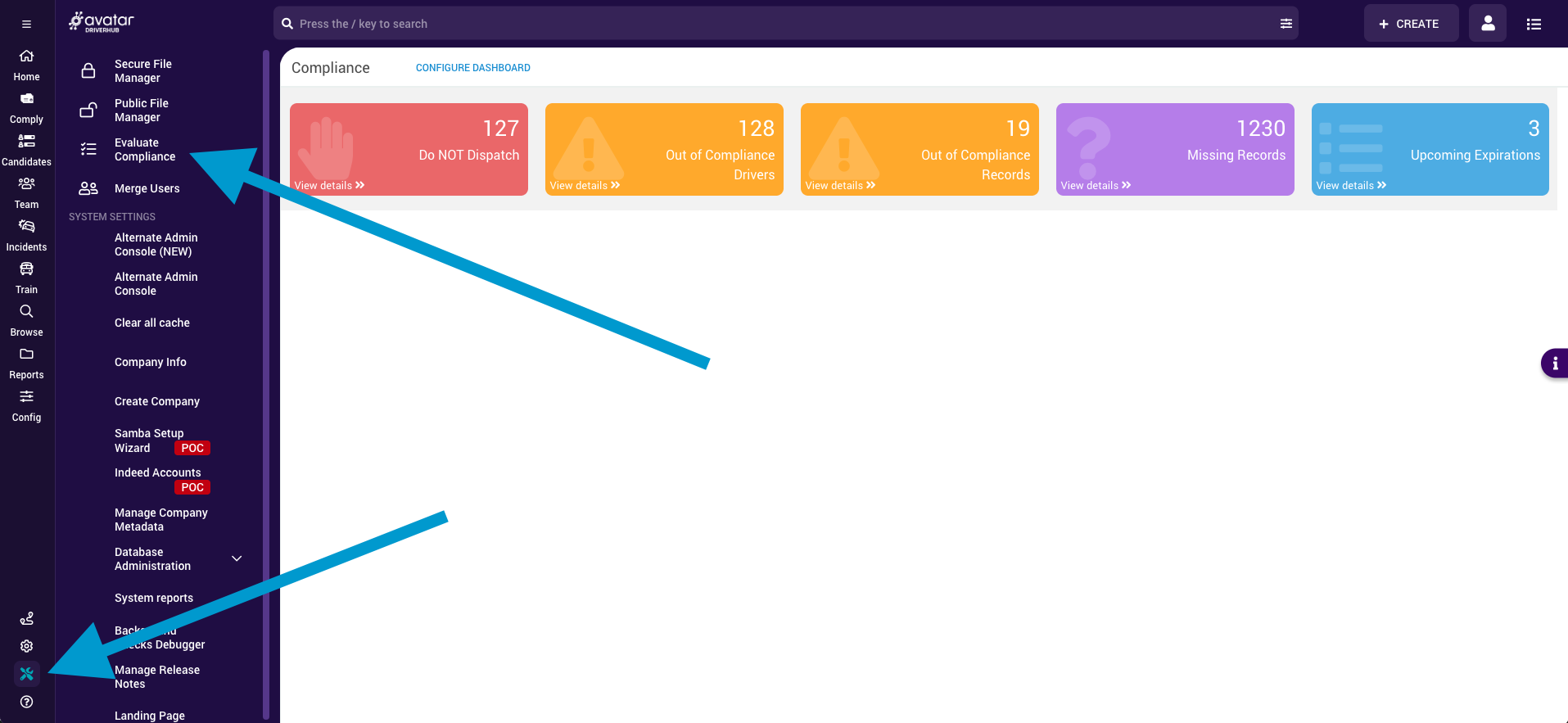
- Monitor system notifications:
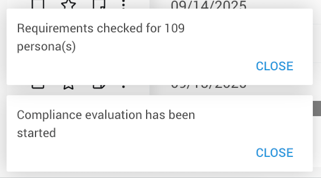
- Look at the bottom-left corner of your screen.
- A notification will appear stating that the evaluation has started.
- A follow-up notification will confirm that the evaluation is completed.
Tips and Support
- Think of this tool as a system "reboot." While DriverHub refreshes individual users automatically when you update their records, a manual evaluation ensures that no background calculation was missed. If the data doesn't look right, run this tool first.
- DriverHub is hard-wired to run a full compliance check twice a day for all users: once overnight and once in the middle of the day. You do not need to run this tool daily, it is intended for "just-in-case" situations or after heavy data entry sessions.
- If company compliance percentages or individual driver compliance statuses still appear incorrect after running a check, please contact our Support team.