Table of Contents
What is a Form?
Creating and Editing Forms
What is a Form Packet?
Creating and Editing Form Packets
Sending Form Requests & Form Packet Requests
Managing Form Requests & Form Packet Requests
Unsigning Form Requests & Form Packet Requests
Dual Responsibility Forms
Forms
What is a form?
A form is a digital document that you can add to a recruiting workflow, or send directly to leads, candidates or team members. The completion of a form results in a Record that ends up on the user’s profile. For example, a driver can complete a drug and alcohol policy form which will result in a record for that policy within their profile.
Creating and Editing Forms
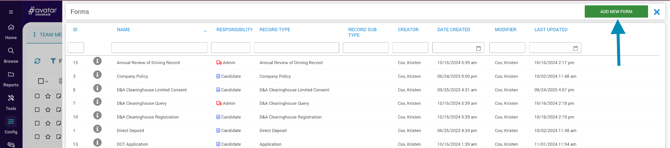
All the forms built into your system can be found by navigating to Config > Forms. You can click on any of the forms listed to edit them, or you can create new simple forms by clicking on “Add New Form” at the top right (shown in the image below).
Creating and editing forms is an advanced feature. You can find detailed instructions on how to build and edit forms by clicking here. If you find yourself needing assistance with this, please reach out to your Client Success Manager or our Support Team!
Form Packets
What is a form packet?
Form Packets are groups of forms that enable a recruiter or manager to send multiple forms at once to a user via text or email. This method of communication saves time and increases the productivity of hiring and management teams, all while simplifying the form completion process for the receiving lead, candidate or team member.
Creating and Editing Form Packets
Form packets can be created and edited by navigating to Config > Form Packets. You can click on an existing packet to edit it, or click on “Add New Form Packet” to create a new one.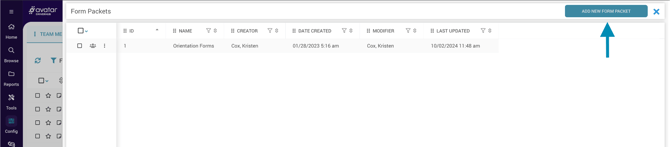
Form and Form Packet Requests
Forms and Form Packets can both be requested or initiated from any user’s profile by following the instructions below.
Creating a Form or Form Packet Request:
- Open the candidate or team member’s profile.
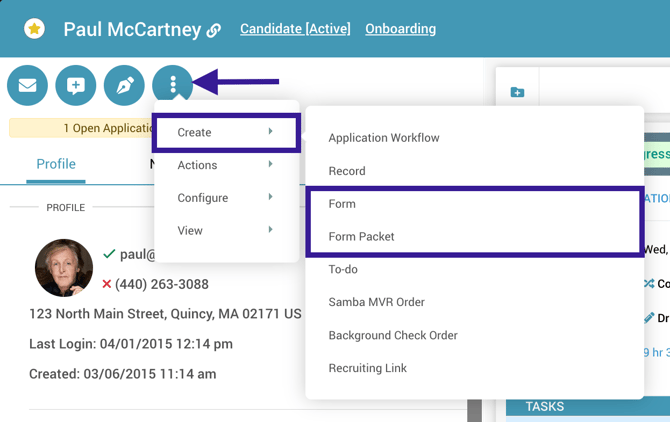
- Click the Create button and select Form or Form Packet.
- Choose the form or form packet from the drop-down menu.
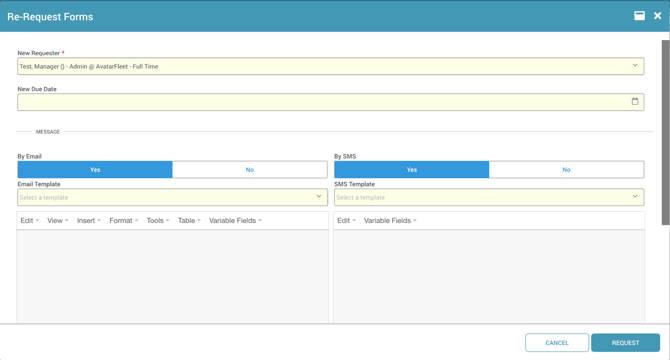
- Complete the remaining fields as required or needed. These fields can change depending on if you’re sending a form or form packet, and further depending on the form that is selected.
- Choose between “Send” and “Create Now”. Use the “Create Now” option if you want to view the form or packet before sending it to the user. This option should be used for forms that require manager/recruiter completion before being signed by a team member/candidate.
- If using the “Send” option, you can add an optional email and/or SMS messaging to be sent along with the form or form packet.
- Click Request.
Recipient Experience:
- The recipient receives a link to complete the form via email or SMS. This link will take them directly to the form or form packet requested.
- Login is not required if the form is completed within 72 hours of the request being made. Login is required after 72 hours.
- Once the form or form packet is complete, the associated records are created on the user’s profile.
- For dual-signature forms, the record is created only after both signatures are submitted.
- Please note, beginning 1/1/2026, all form and form packet requests will require email or text authentication by the recipient to access the forms.
Managing Form and Form Packet Requests
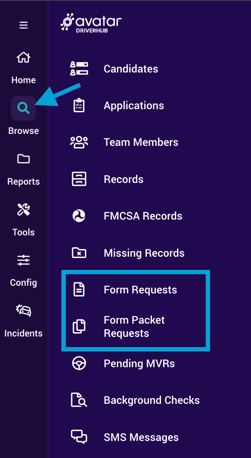
You can check the status of Form and Form Packet Requests by visiting the Form Request or Form Packet Requests browsers. You can find these by navigating to Browse, then selecting either Forms or Form Packets. Either will take you to the selected browser so that you can check on the progress of requests, resend requests, delete requests sent in error, etc. Selecting requests using the checkboxes on the left will provide multiple options for managing requests.
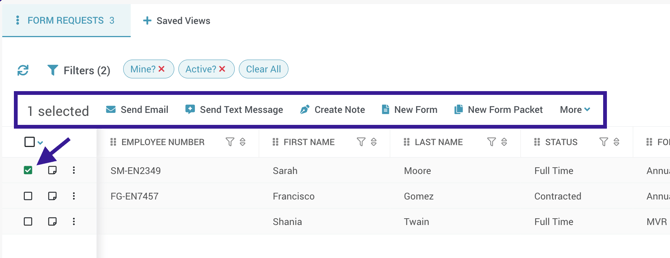
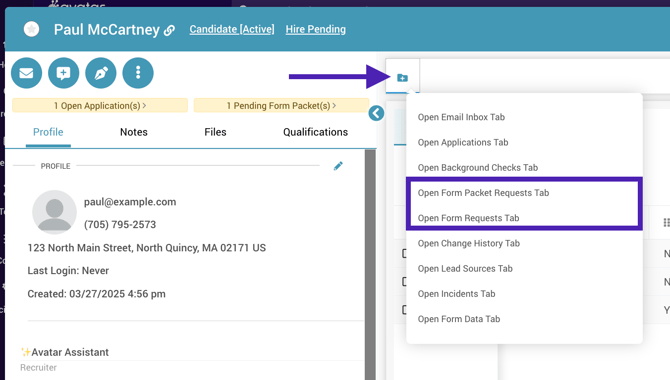
You can also manage both Form and Form Packet requests from a user's profile by clicking the folder shown below and selecting either "Open Form Packet Requests Tab" or "Open Form Requests Tab".
Similar to the company's general Form Request Browser, Form Requests in an individual's profile will appear in a browser format and can be managed exactly as shown above. Form Packet Requests can be expanded and collapsed, and have an Action button where you can re-send, delete, and otherwise manage the individual request.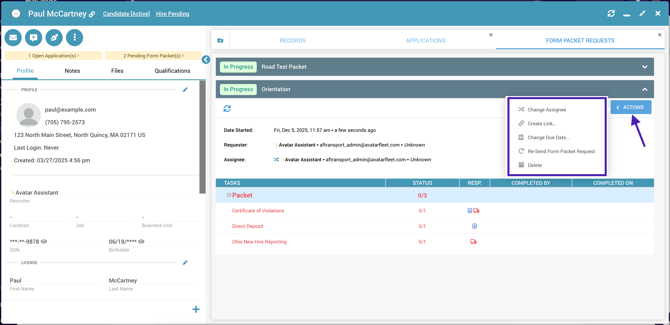
Unsigning Form Requests
Unsigning a Form Request is used when a form or co-signature was signed in error or must be completely redone and resent.
⚠️ Caution: Unsigning a form request is a permanent action and cannot be undone.
Step-by-Step Instructions:
- Navigate to the Browse menu and select Form Requests.
- Check the box next to each form request you wish to unsign.
- A menu will appear at the top of the list; click More, then choose Unsign Forms.
- In the pop-up window, review the options:
- Check Unsign Co-Signatures Only to remove only the co-signatures while leaving the primary signature intact.
- Check Send Request Email to automatically send a new signature request email after unsigning.
- Review the confirmation prompt and click Unsign All to finalize the action.
Here is a video showing these instructions:
Dual-Responsibility Forms
Forms can be configured to require input from both a candidate/driver and their recruiter/manager. They can further be configured to require signatures by one or both parties, and you can determine in what order the form is submitted/signed.
Candidate/Driver Signs First
When a form is configured to be signed by the candidate/driver first, you will want to send the form request to the user first. Once they submit/sign their portion, you will be alerted in DriverHub’s notifications so that you can finalize the form within the user’s profile. 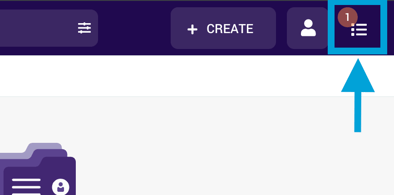
On the user’s profile, you will see a yellow “Pending Forms” badge. Clicking this badge will take you to the individual user’s Form Request browser so that you can complete the open form. Once your portion is completed, a record will be created in the profile. 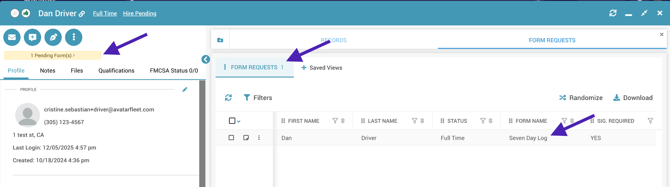
Manager/Recruiter Signs First
When a form is configured to be signed/submitted by a manager/recruiter first, you’ll want to use the “Create Form Now” option when initiating the form request. This will allow you to complete your portion before sending it to the candidate/driver. 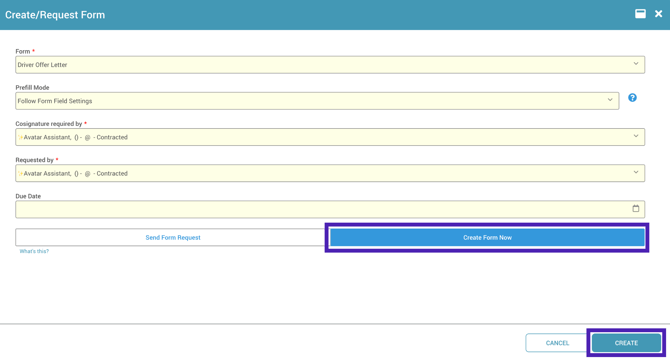
Once you submit your portion, you will see a pop-up message asking if you want to send the form to the candidate/driver.
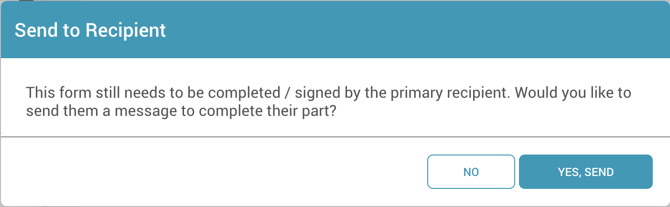
This will open up a window that will allow you to send a link to the form via text, email or both! Once the candidate/driver completes their portion, a record will be created in their profile.