
DriverHub Integrations sometimes don't work due to incorrect or missing information. In these cases, you will typically see a pop-up error message that provides some information indicating what needs to be corrected.
In this article we will go over some of the most common integration errors and show you how to resolve them.
Troubleshooting Samba Safety Errors
Access Denied Error
If you have the integration set up, and you are receiving an "Access Denied" error when trying to monitor one of your drivers, read below to see how to solve the issue:
-png-1.png?width=239&height=237&name=image%20(2)-png-1.png)
The "Access Denied" error is because someone from your company has deleted the driver inside of Qorta. They need to be "unarchived" in Qorta before we can access that person through the API.
See below on how to unarchive in Qorta:
-png.png?width=670&height=302&name=image%20(2)-png.png)
License Type Mismatch
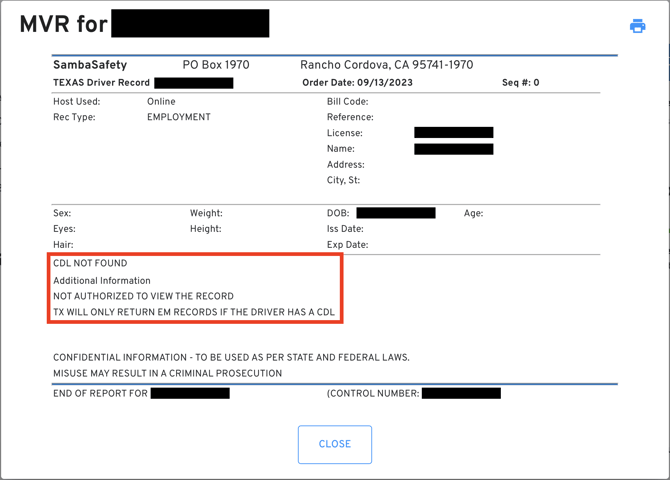
When you receive the error shown in the MVR below, be sure to check both DriverHub and Samba Safety to ensure that both have the correct license type (CDL/Personal). Most of the time, the discrepancy will be found on the Samba side. If the driver is enrolled in monitoring, you will need to turn off monitoring on the Samba site, edit the license type, and then turn monitoring back on. Please note that this may incur additional enrollment fees.
.png?width=670&height=348&name=image%20(3).png)
License Name Mismatch
When you come across either of the errors below, be sure to check both DriverHub and Samba Safety to ensure that both have the correct name. If you already have a copy of their license, we advise matching the name exactly as it is on the license. You do not need to turn off monitoring to resolve this issue. Please note that while rules differ by state, suffixes are typically not required and might cause this error to occur.
.png?width=670&height=331&name=image%20(2).png)
State Outages
Individual states may experience outages that affect MVR reporting through Samba. You can check the status of a state's transactional services by clicking here.
Troubleshooting Asurint Errors
Invalid Zip Code Error
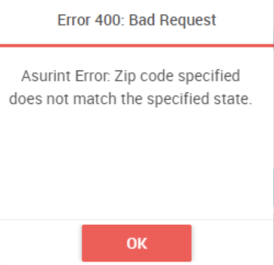
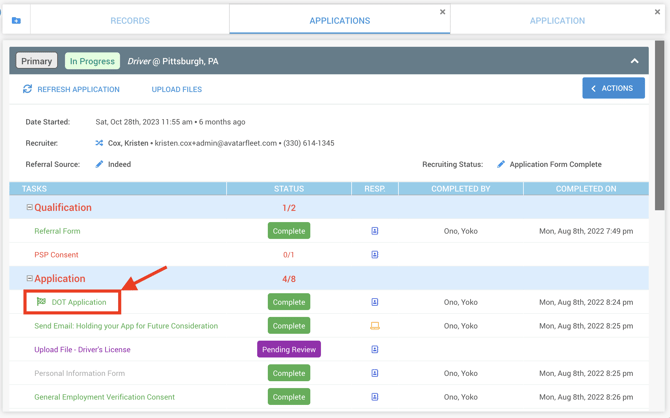
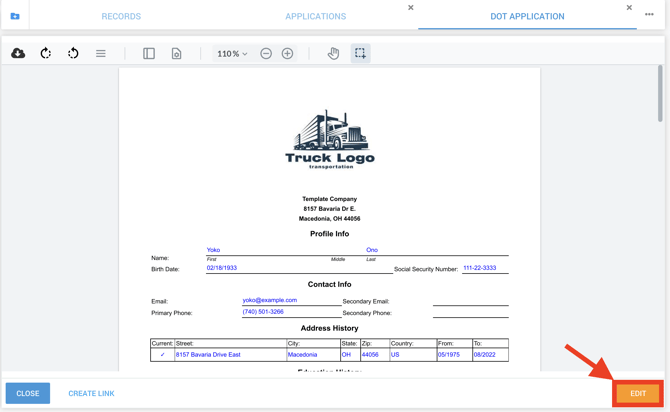
When you come across an error that states the zip code specified does not match the specified state, this means that somewhere in their application, the driver used an incorrect zip code. This discrepancy can typically be found in their address history, or within the addresses of previous employers on their DOT Application.
Troubleshooting HireRight Errors
"User Not Found" or "User Not Configured in HireRight"
A: These errors can come up for one of two reasons.
- Often, this is a result of an incorrect master email address. The master email in the HireRight setup within DriverHub needs to belong to a real, active user within HireRight.
- Another reason this happens is that the ordering user has an account in HireRight, but HireRight did not set up that user's account correctly.
For either of these situations, a ticket with HireRight needs to be opened to confirm that the Master email set up on the account matches what's in DriverHub and to confirm the "reference ID" field within HireRight's settings matches the email address of the user attempting to order.
AvatarFleet Support
If you are still having trouble, you can reach out to support@avatarfleet.com.