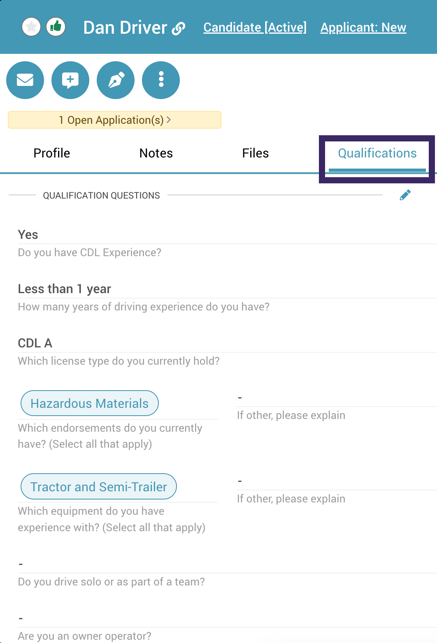
The Qualification Questions feature in DriverHub allows you to configure specific questions for candidates to answer directly on your landing page while applying. This ensures you collect pertinent information early in the process, helping you invest time wisely in the most qualified candidates.
You can set a global list of questions for the company and then customize which questions appear for specific positions (e.g., asking different questions for a Driver vs. a Mechanic).
Set Up Company-Wide Qualification Questions
First, you must build your master list of qualification questions that will be available to use across your organization.
- Navigate to Configuration > Jobs Board Landing Pages > Qualification Questions.
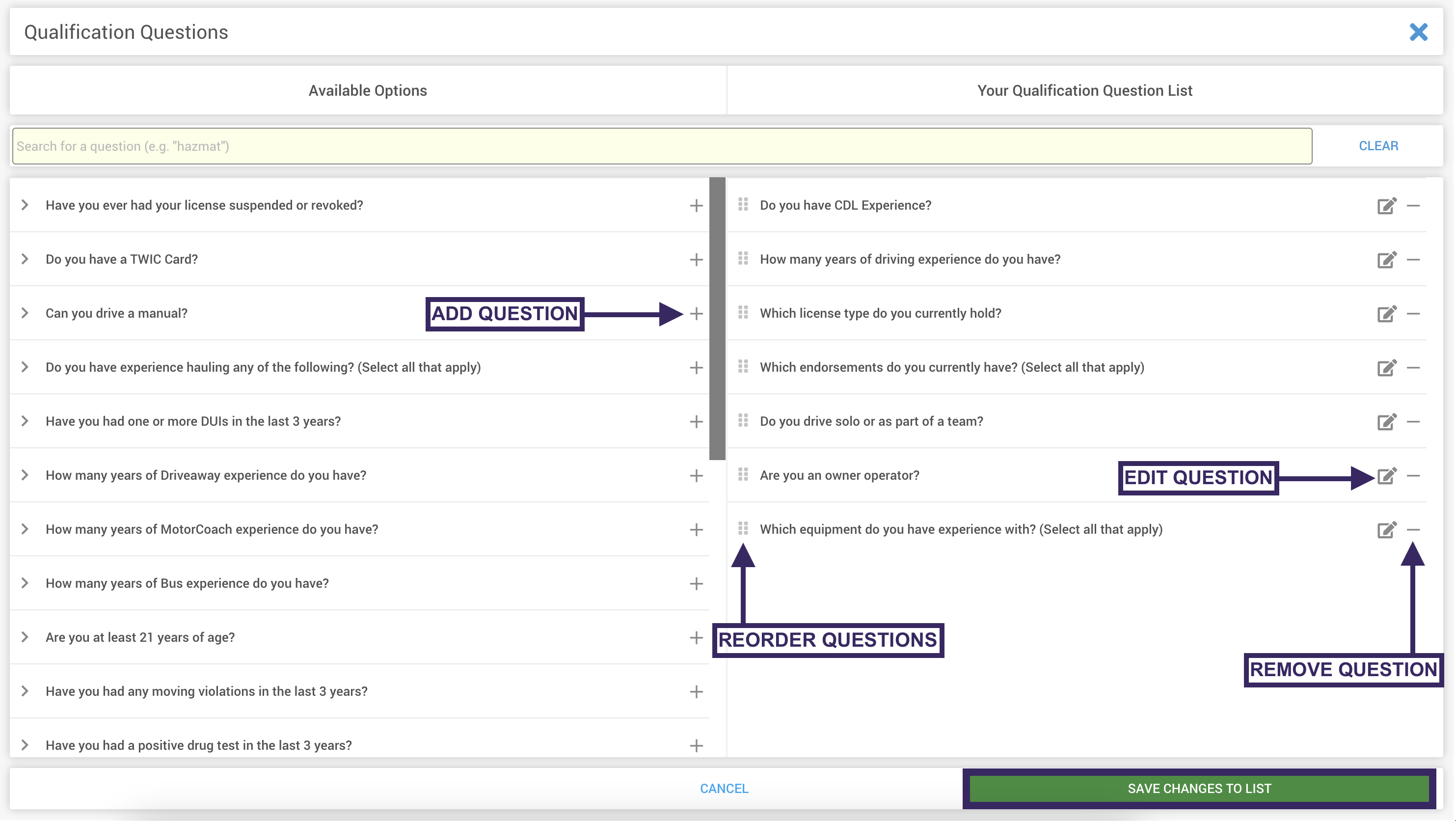
- In the left column, you’ll see all potential questions that are available to use. In the right column, you’ll see questions that have been chosen for use in your company’s positions.
- To add a question to the right column, click the plus sign next to the question. The question will move to the right column, indicating that it’s now active.
- To remove a question from the right column, click the minus sign next to the question. This will move the question back to the left-hand column.
- To reorder the questions in the right column, click and hold the drag icon to the left of the questions to drag and drop them in the order you want candidates to see them.
- To edit a question, click the pencil icon.
- You can customize how a question is phrased without changing its underlying function by typing your preferred wording in the text box.
- Note: DriverHub will always display the original meaning of the question below your custom text for reference.
- You can also toggle specific answer options on or off, or enable a Free Text response for certain questions.
- After making any changes, click Save Changes within the edit box.
- You can customize how a question is phrased without changing its underlying function by typing your preferred wording in the text box.
- Important: When you are finished configuring your list, you must click Save Changes to List at the bottom right of the screen.
Customizing Questions by Position
By default, the questions you selected for the company will appear for all positions. However, you can tailor this for specific roles (e.g., removing CDL questions for a non-driving role like a Mechanic).
- Navigate to Config > Recruiting > Positions & Openings.
- Select the position you wish to edit (e.g., Mechanic).
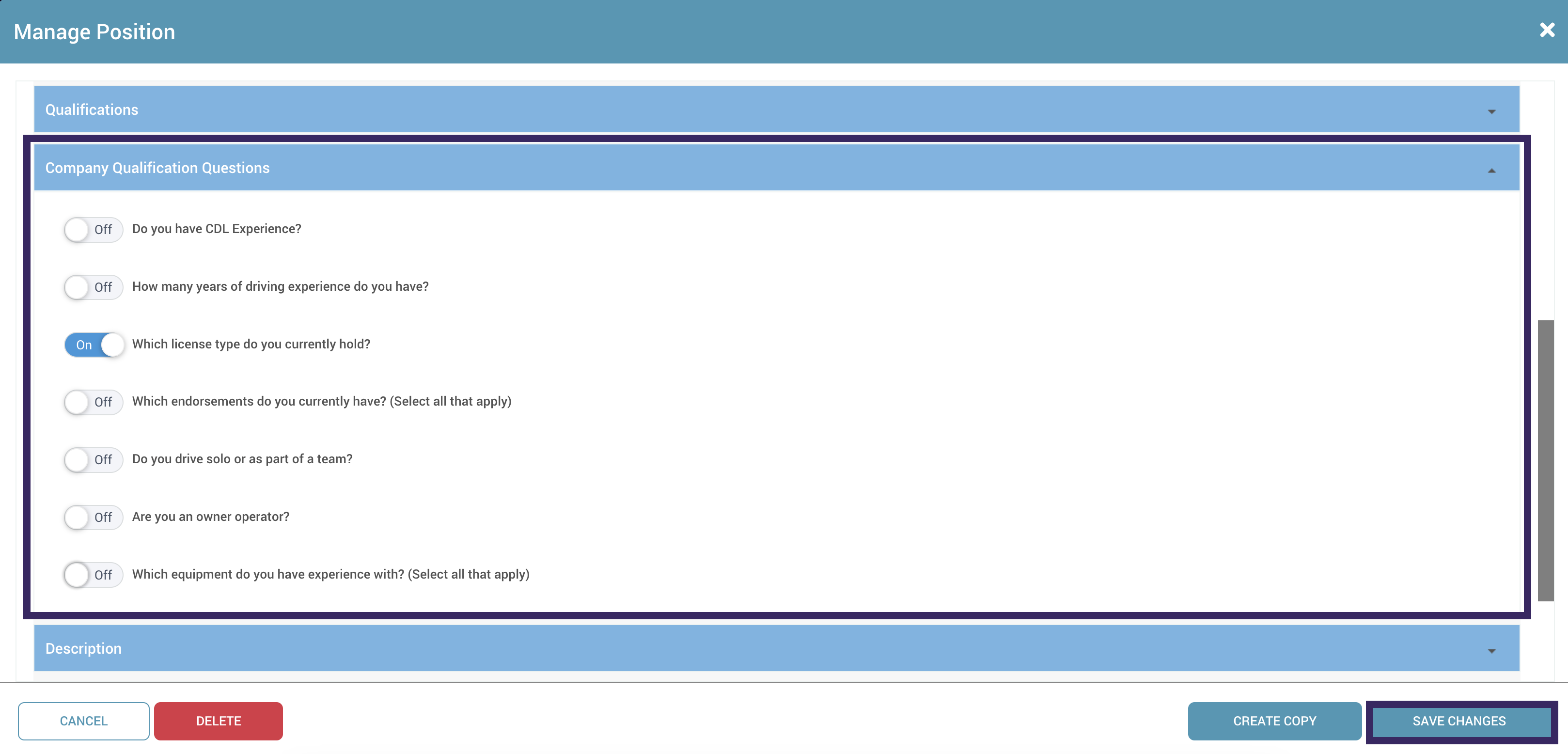
- Click the Company Qualification Questions tab to expand it.
- Toggle OFF any questions that are not relevant to this specific position.
- Click Save Changes at the bottom of the screen before leaving.
Viewing Candidate Responses
There are two ways to review the answers candidates provide to your qualification questions: via the Candidate Browser or on the individual Candidate Profile.
Method 1: The Candidate Browser
This allows you to see answers for multiple candidates at a glance.
- Navigate to the Candidates Browser.
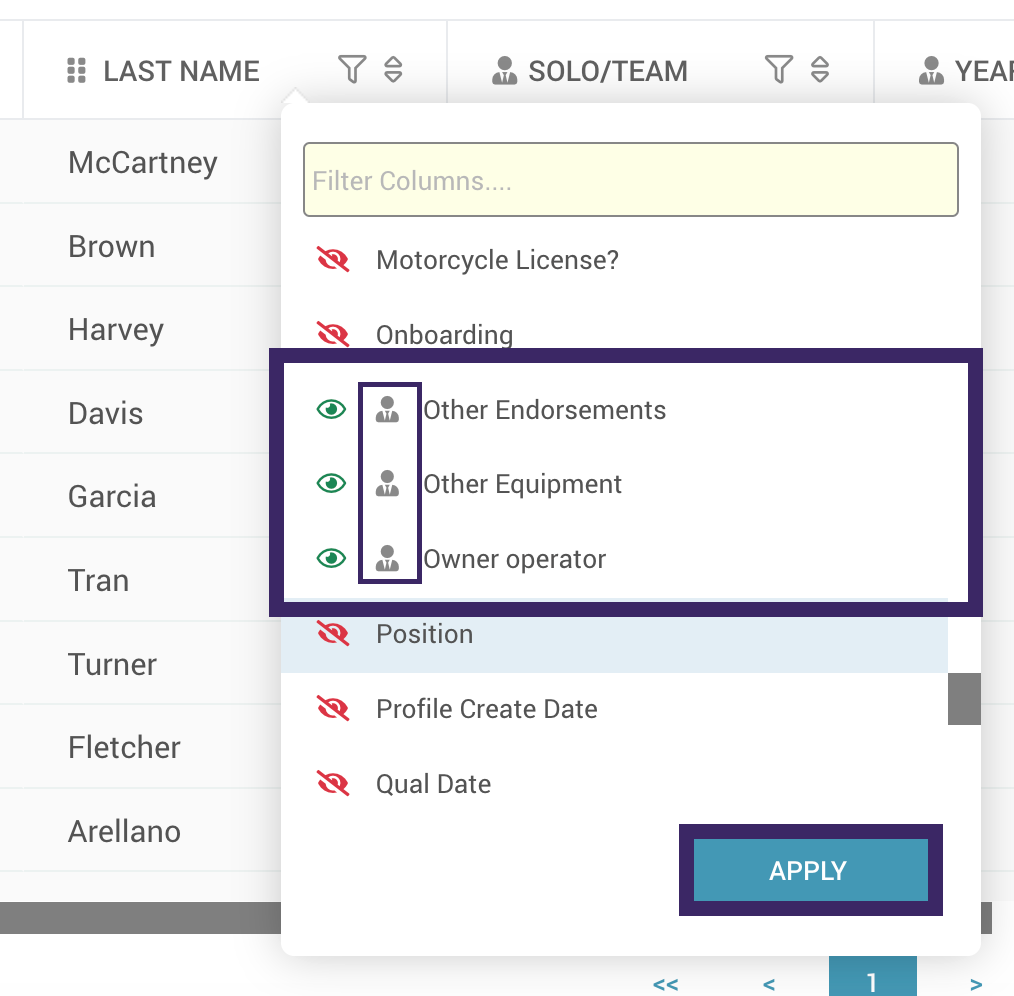
- Right click on any column to bring up all column options.
- Scroll through the available columns to find your qualification questions.
- Tip: Look for the Suit Icon next to the row header; this indicates it is a qualification question.
- Click the eye icon next to each of the questions you want to view as columns and click Apply.
Create a Saved View (e.g., named "Active Qualifications") so you can quickly return to these qualification questions later.
Method 2: The Candidate Profile
- Navigate to a specific candidate’s profile.
- Click on the Qualifications tab.
- Here you can view the full list of questions asked and the specific answers provided by that candidate.