How to Create a New Record Sub Type
To define a new record sub type in the system, follow these steps:
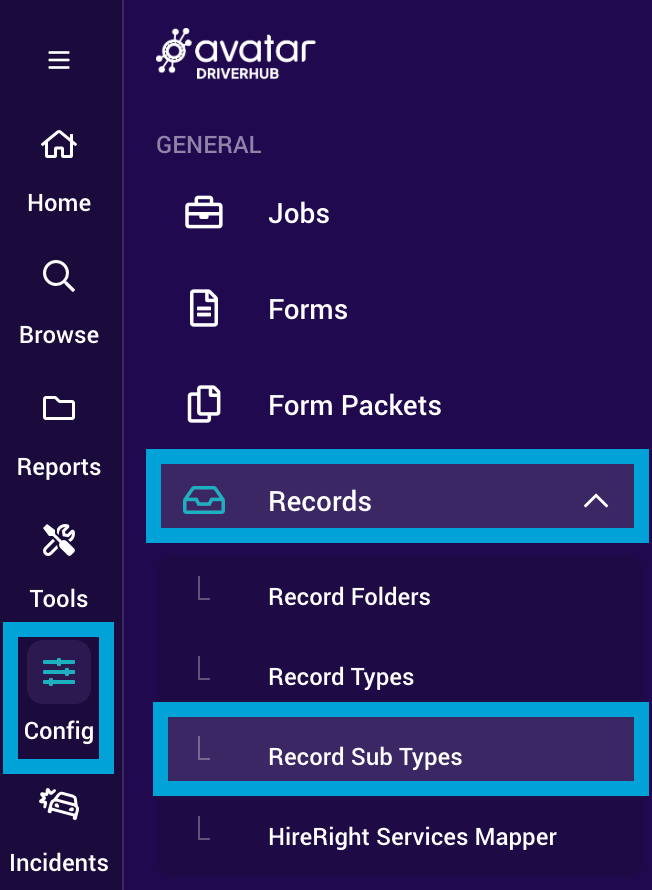
- Navigate to Config > Records > Record Sub Types.
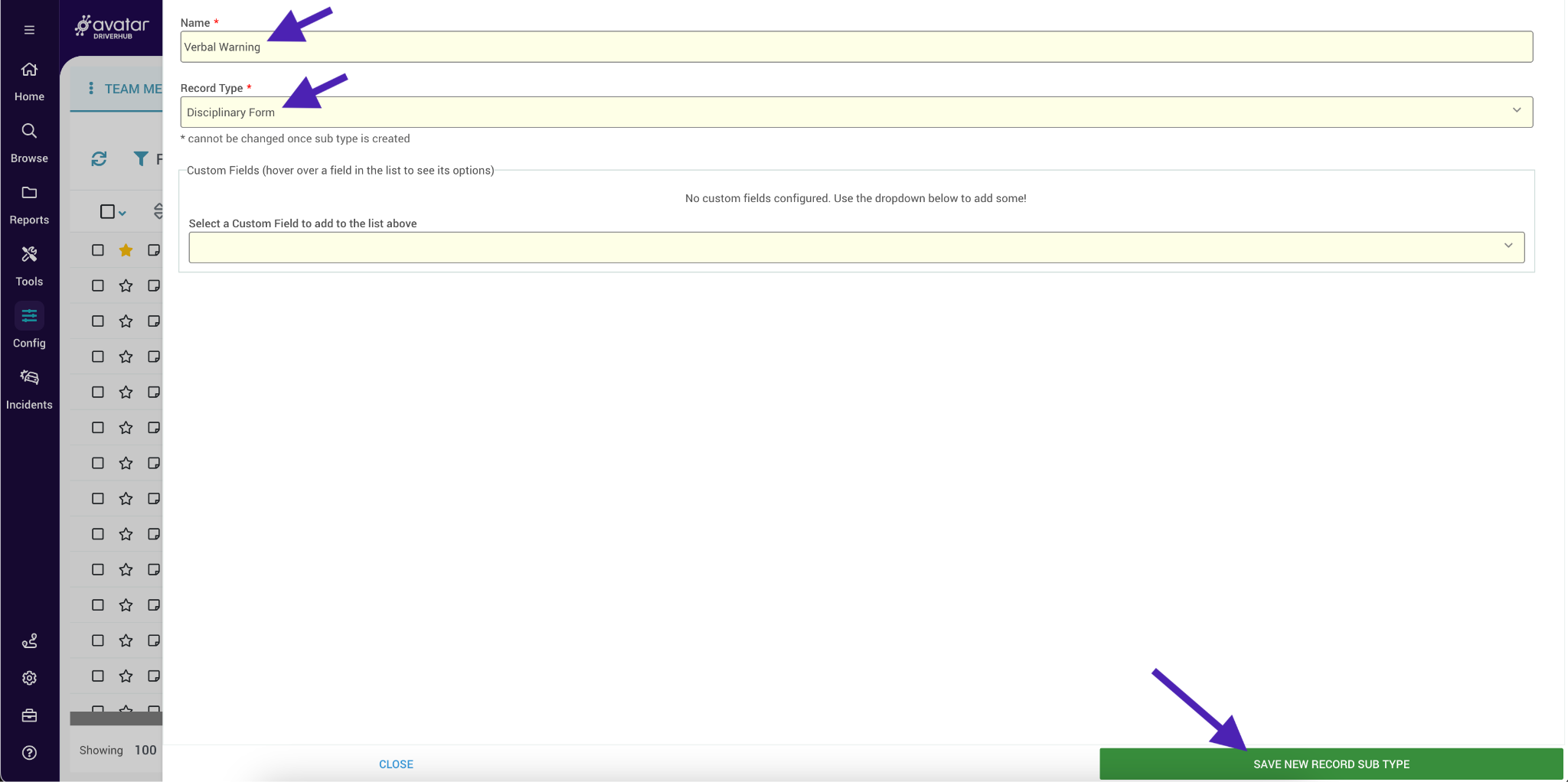
- Click the “Add New Record Sub Type” button.
- Select the record: Choose the parent record type you wish to create a sub type for.
- Name the subtype: Type the specific name for this sub type.
- Click “Save New Record Sub Type”
Once saved, the sub type is immediately active for use. You can repeat this process to add multiple sub types to a single parent record type.

Using Record Sub Types
When assigning a record to a specific user, the system will now present the option to select a sub type.
- Navigate to a user’s profile.
- Click on the three dots menu, then click on Create > Record.
- Use the dropdown menu to find the record type you created a sub type for.
- You will now see options to:
- Create a standard record (without a sub type).
- Select the specific sub type you created.
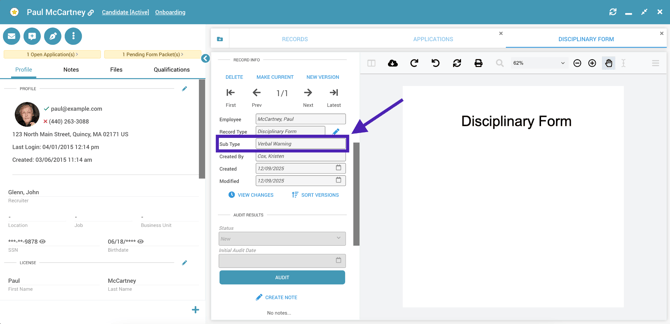
- Click “Create New Record”. The specific sub type will be listed on the record once it loads.

Searching and Filtering by Sub Type
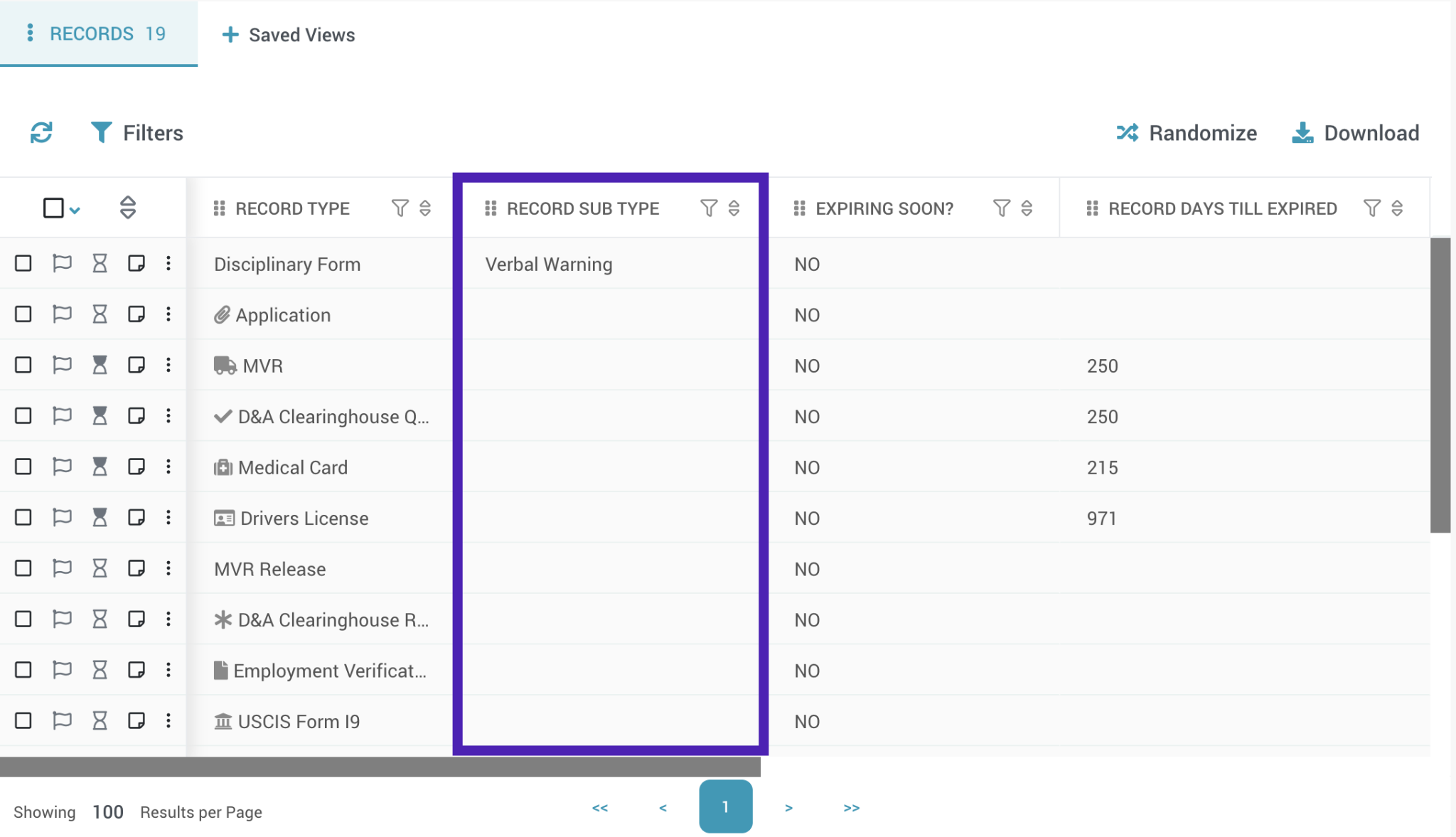
Once sub types are configured, you can add a “Record Sub Type” column to any browser view to sort and filter by sub types. This includes both the company-wide records-based browsers as well as the records browser found within a user’s profile.