
The Rehire feature streamlines the return of former employees, ensuring their compliance history is preserved while keeping their current employment file clean and organized. By strategically copying or moving records, you can save your team time during the onboarding process.
This article demonstrates how to use the Rehire Workflow to organize previous driver records with new applications. You will learn how to approve a returning driver, choose which documents to transfer or copy, and navigate their multi-stint employment history.
How to Use the Rehire Workflow
1. Initiate the Approval Process
When a former driver reapplies using their original email address, the system automatically detects the match.
- Navigate to the driver’s current application.
- Click the Actions icon and select Approve.
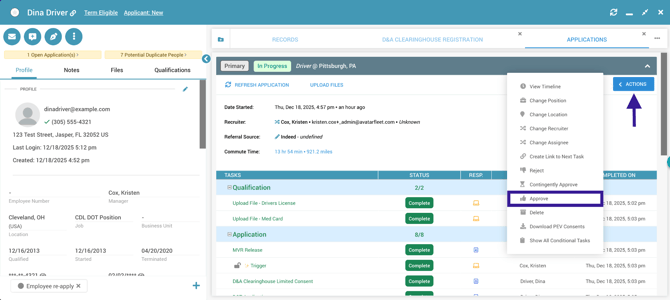
- The system will immediately trigger a "Rehire" notification. Select Yes to proceed with the rehire workflow.

2. Enter New Employment Details
Before managing documents, you must set the parameters for the driver's new employment.
- Complete all of the required fields, then click Next to continue to the Record Transfer screen.
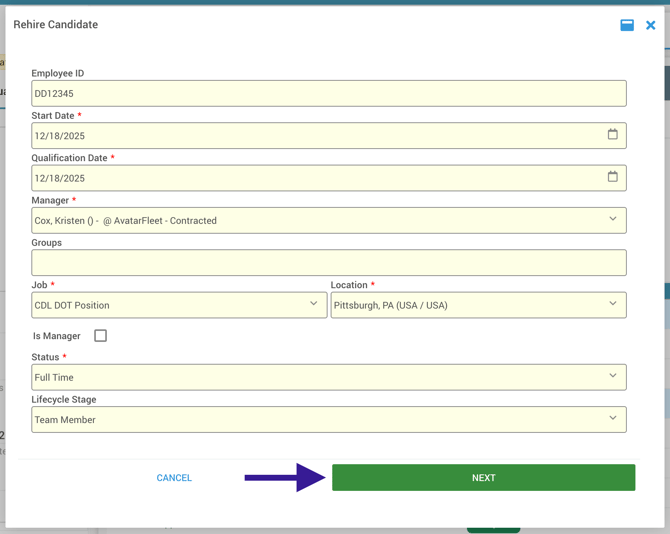
3. Manage Driver Records
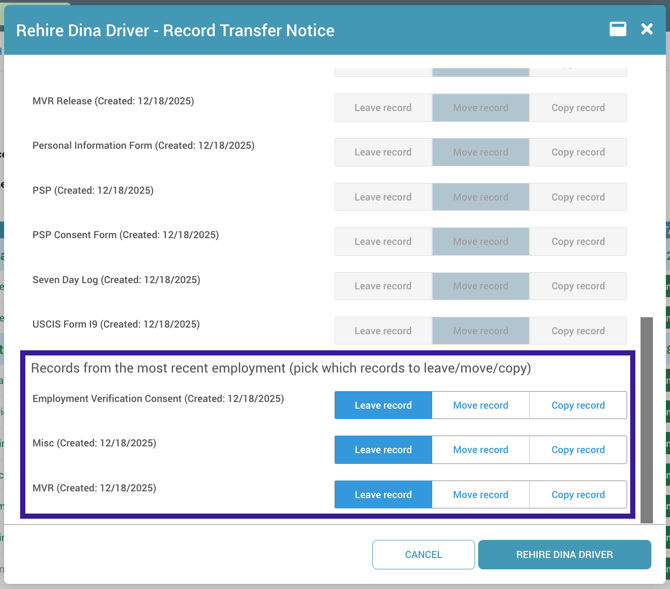
This screen allows you to bridge the gap between the old file and the new file. At the top you will see a list of records completed in the new application workflow; these will all end up in the new employment record. 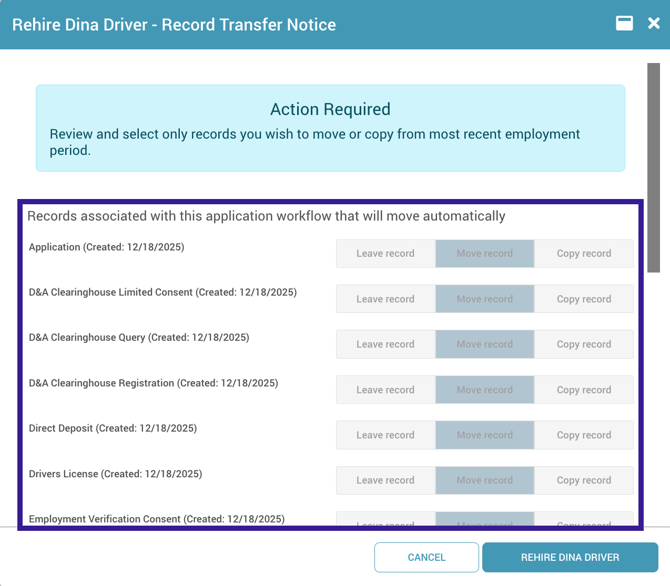 Below that, you’ll see their old employment records, each with three options beside it:
- Leave Record: Keep the record in the old file only.
- Move Record: Transfer the record from the old file to the new profile.
- Make a Copy: Create a duplicate of the record so it exists in both the old and new files.
4. Finalize the Rehire
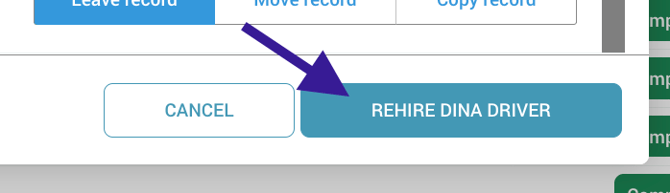
Once you have chosen what to do with each record, click the Rehire button.
- DriverHub will generate a brand new employment record for the driver.
- The system will immediately begin tracking compliance for the new employment period.
5. View Employment History
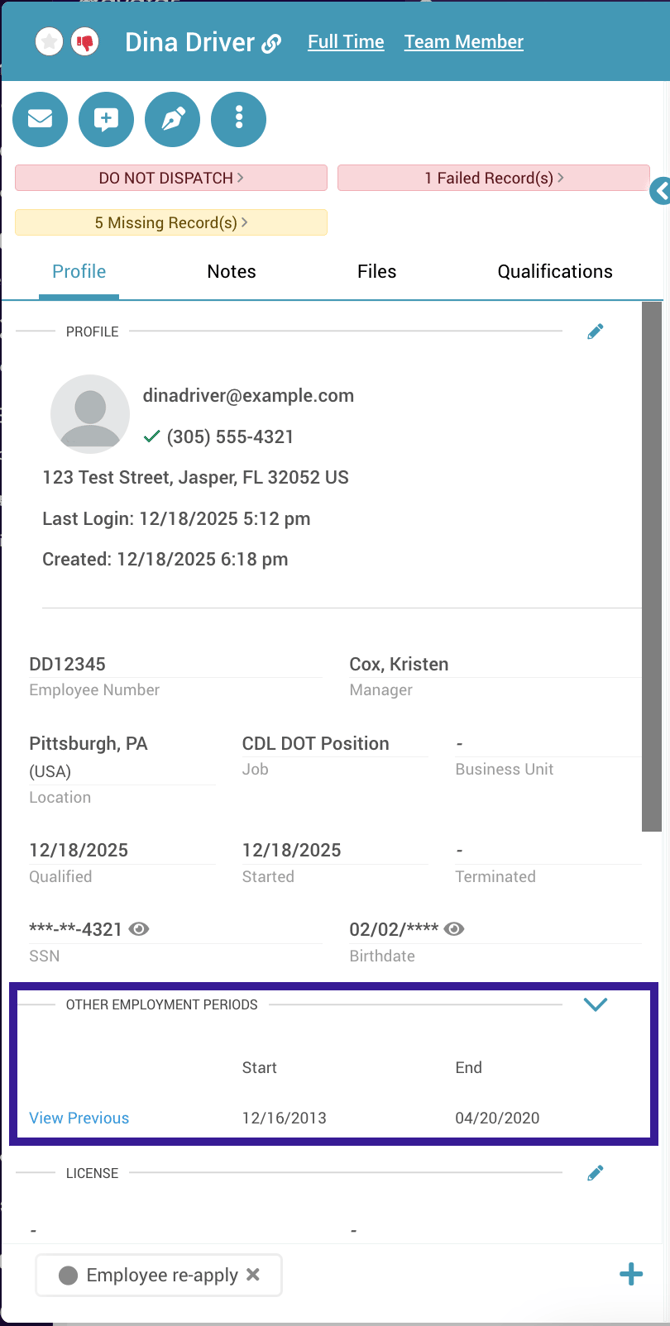
To see the driver’s full history with your company, scroll to the Other Employment Periods section of their profile.
- This section tracks all past employment dates.
- Click View Previous to toggle back to the old employment record and view historical documents or data.
Additional Information
- Feature Activation: If you do not see the Rehire prompt when approving a former driver, this feature may not be enabled for your account. Please contact your Client Success Manager to have it turned on.
- Search Functionality: When using the search bar, the system will populate the driver's current active profile. You can always access historical files from within that profile via the Other Employment Periods section.