
DriverHub acts as the single system of record: new drivers are created in Samsara, existing records are kept up to date, and terminated drivers are deactivated—all without manual data entry.
This one-way integration eliminates duplicate data entry, prevents data drift, and closes the compliance gap that occurs when a driver is terminated in DriverHub but remains active in Samsara.
Key Benefits
- DriverHub as the system of record: Driver profile data flows automatically from DriverHub into Samsara on a nightly basis—no need to manage records in two places.
- Automatic offboarding: When a driver is terminated in DriverHub, their Samsara account is deactivated during the next sync, closing a critical compliance gap.
- Configurable and flexible: Scope the sync by job type, maintain a suppression list of drivers who should never sync, preview affected drivers before committing, and trigger a manual sync on demand.
- Push drivers on demand: When a new driver is hired, push them to Samsara directly from the new-hire workflow or from the driver’s profile.
How It Works
Once your Samsara API key is added in DriverHub, the integration can create and update drivers between the two systems. The sync operates as follows:
- Nightly automated sync: DriverHub runs an automated sync every night at 4:00 AM EST to keep drivers in sync.
- On-demand push: Users can create or push a driver to Samsara from the DriverHub profile or the New Hire Workflow.
- Manual sync: Site Admins can trigger an immediate sync at any time using the “Sync Now” button on the configuration screen.
- One-way sync: DriverHub is the source of record. It pushes new drivers to Samsara and updates existing ones. Changes made in Samsara are not synced back to DriverHub.
Match Logic
To avoid creating duplicate records, the sync matches drivers using the following precedence. The first match wins:
|
Order |
Match Key |
Behavior |
|---|---|---|
|
1 |
Samsara Driver ID |
If absent, fall through to the next. |
|
2 |
Employee Number |
If absent, fall through to the next. |
|
3 |
License Number + State |
If absent, fall through to the next. |
|
4 |
Full Name + Phone Number |
Final fallback. If this is the only match, the driver |
Connecting Samsara and DriverHub through an API readies your system for roster synchronization, allowing hired drivers from DriverHub to flow seamlessly into Samsara. Setup is a two-part process: create an API token in Samsara, then add it to DriverHub.
Before You Begin: Required Permissions
To create an API token, you must have a Full Admin or Standard Admin role in Samsara, or a Custom Role with the following permissions:
- Edit permissions to see and edit API Tokens.
- Edit permissions to create, edit, and delete users, roles, and tags.
In all cases, your role must have access to manage the Entire Organization. Roles that use Tags for reduced scope (Tag-Level Admins) are not sufficient.
Step 1: Create an API Token in Samsara- Select the Settings icon (gear icon) at the bottom of your Samsara dashboard.
- Select API Tokens.
- Click + Add an API Token.
- Enter a descriptive Name for the token (for example, “DriverHub Roster Sync”).
- Select the level of Tag Access for your token.
- Set the Permission Scope as shown in the table below.
Required Permission Scopes:
|
Resource |
Access Level |
|---|---|
|
Drivers |
Read + Write (a PII warning will appear—this |
|
Vehicles |
Read + Write |
|
Trailers |
Read + Write |
|
Attributes (under Setup & Administration) |
Read + Write |
- Save your changes.
- Copy the token immediately. The token becomes unreadable after the page is refreshed, so record the token string in a secure location.
- In DriverHub, click the Settings gear icon and select Samsara from the menu.
- Paste your API token into the API Token field.
- Click Save Changes.
Once connected, your vehicles will appear in the Incident Management module, helping you monitor incidents linked to the appropriate vehicle. With the connection established, you can enable Roster Sync.
Configuring Roster Sync
From the Samsara configuration screen in DriverHub, Site Admins can control how and when drivers sync:
- Enable Sync Roster: Turn on the roster sync toggle to begin nightly syncing.
- Scope by job type: Use the job-type selector to choose which drivers are included in the sync.
- Exclude specific drivers (suppression list): Add drivers who should never be synced to Samsara, regardless of job type.
- Preview Roster Sync: Click to open a preview modal showing exactly which drivers will sync at the next scheduled run.
- Sync Now: Trigger an immediate sync at any time rather than waiting for the 4:00 AM EST run.
Pushing a Driver to Samsara Manually
In addition to the nightly sync, you can push an individual driver to Samsara on demand.
From the New Hire Workflow
When hiring a candidate, enable the Create Persona in Samsara toggle in the Integrations section of the Hire Candidate screen. When you approve the hire, the driver is created in Samsara.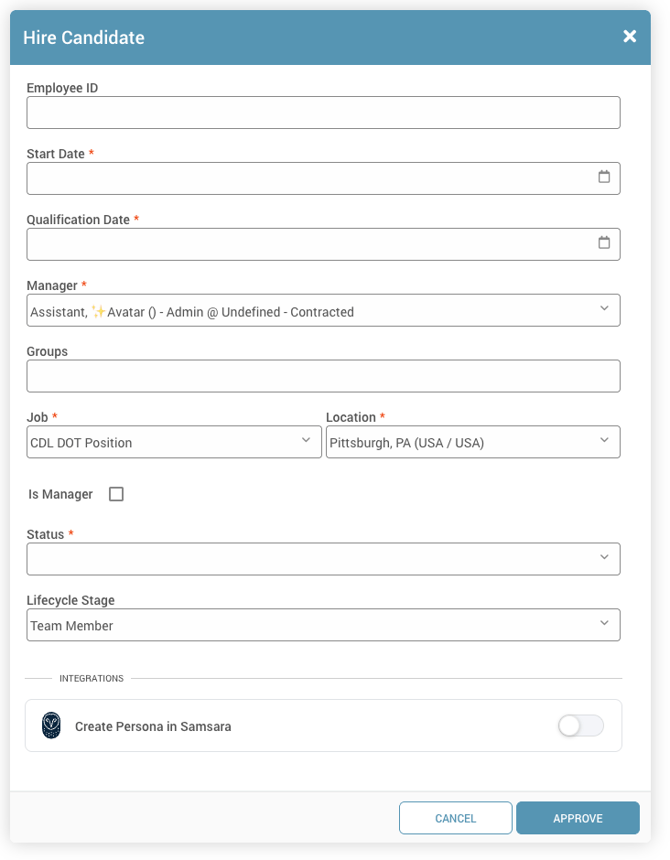
From a Driver Profile
On a driver’s profile, use the Add to Samsara option. If the person is not yet in Samsara, click Push Driver to Samsara. This creates a new Samsara driver account using their DriverHub profile (name, license, phone) and links it automatically. The driver sets their Samsara password through Samsara’s password reset flow.