
The Application Timeline
- Submission & Account Creation
When a candidate submits their information on the Landing Page, DriverHub immediately creates a profile and sends an automated text/email with a link to their application workflow. - Candidate Tasks
The candidate follows the link to complete currently available forms and uploads. Additional tasks may unlock later in the process depending on the workflow setup. - Recruiter Responsibilities
While the candidate works, the recruiter must:- Review uploads (Medical Cards, Driver Licenses).
- Co-sign applicable forms.
- Complete internal tasks (Scheduling interviews, ordering background checks).
- Approval & Hiring Once all tasks in the workflow are complete, the candidate is ready to hire. Click here for more information on approving candidates.
- Note: Unless the recruiter has "Force Approve" permissions, all workflow items must be green (except for Previous Employment Verifications which may remain purple/pending), for an application workflow to be considered complete.
Troubleshooting
- Re-engaging Stale Candidates
If a candidate stops participating, send them a direct link to their next specific task using this guide: Creating a Link to a Task - Fixing/Editing Submitted Forms
To allow a candidate to fix a mistake on a completed form (such as employment history on their DOT Application or Employment Verification Consents) without starting over:- Click the completed task to view it.
- Click Edit on the bottom right to open it for editing.
- Click Create Link on the bottom left and send to the candidate via email or text.
- The candidate can now correct the specific fields needed and re-sign/resubmit.
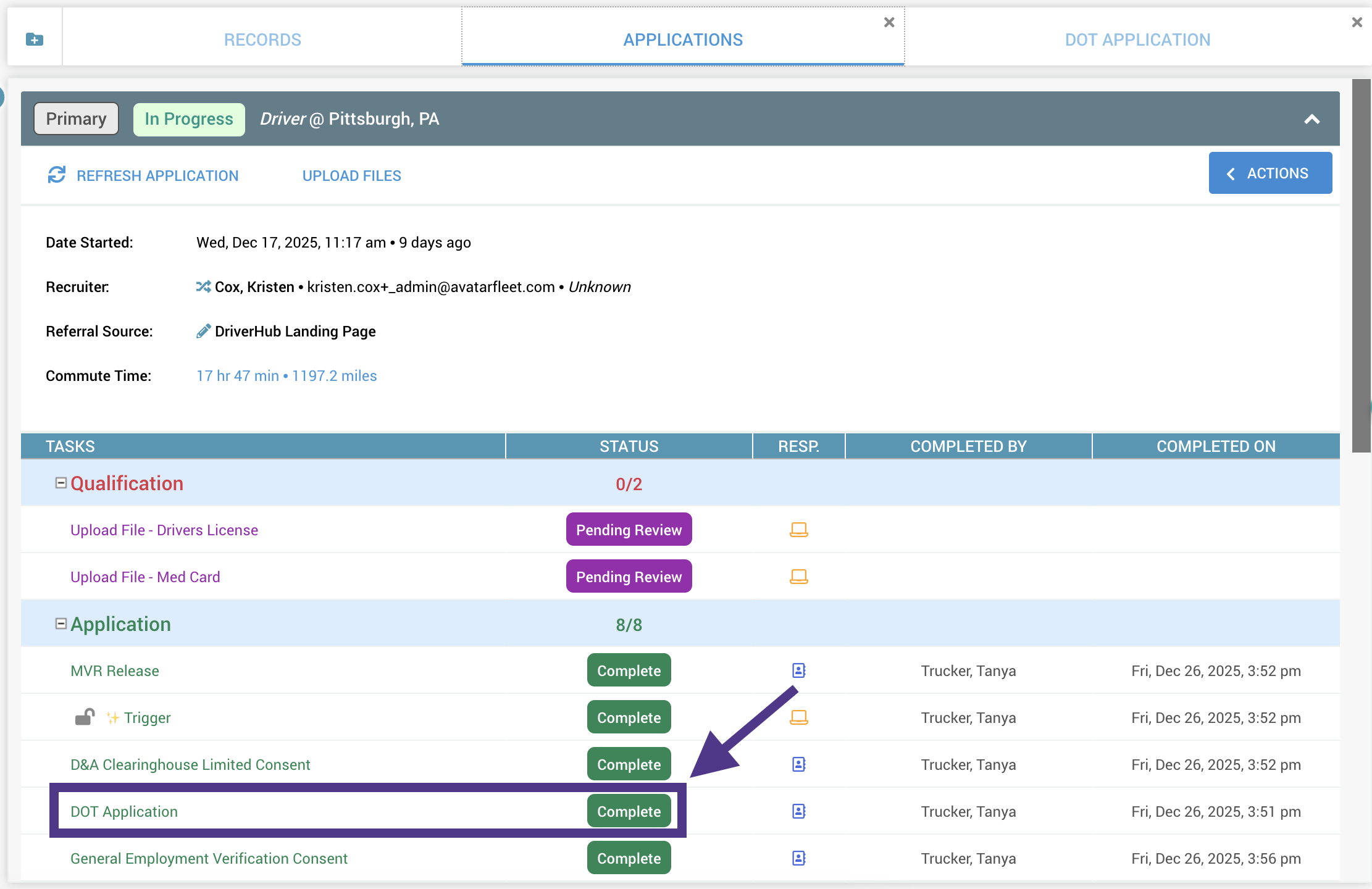
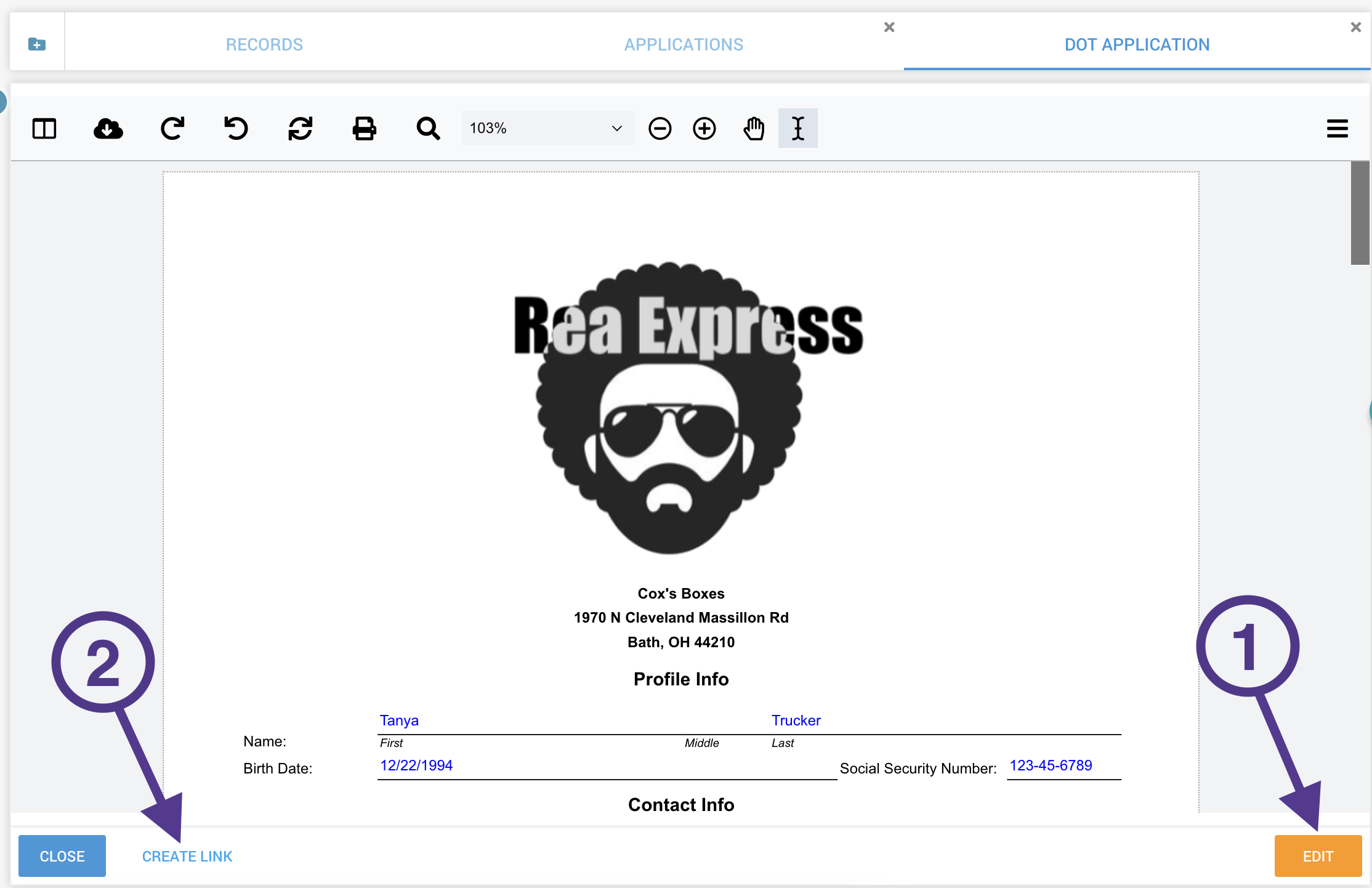
- Overriding Tasks
If a task is not applicable or was completed outside of the workflow, right-click the task and select Override. This forces the task to show as green and be considered complete for application approval purposes.- Note: If you do not see the option to override tasks but believe you should have this ability, please contact your Client Success Manager to adjust your permissions.