
Overview
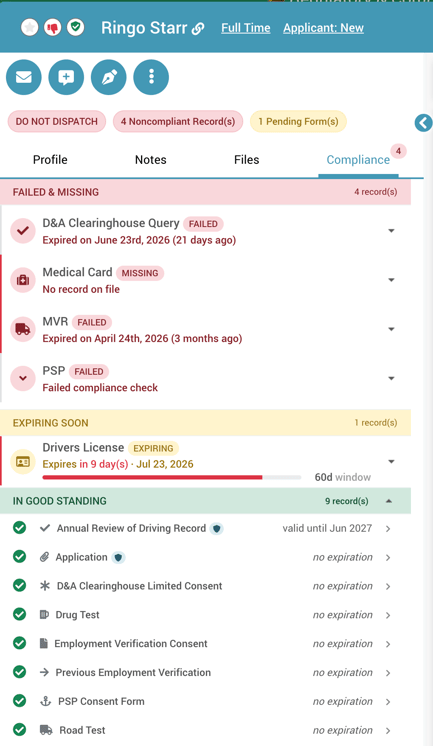
Every team member profile in DriverHub now includes a Compliance Tab — a single, consolidated view of every record driving that person's compliance status. Instead of seeing a red or yellow flag with no explanation, you can now see exactly which records are in good standing and which are failed or missing, all in one place.
Why This Change Matters
Previously, a non-compliant status only told you that something was wrong — not what. To find the underlying issue, you had to hunt across multiple views and screens to piece together which records were actually driving the flag. This slowed down day-to-day compliance work and created room for issues to fall through the cracks.
The Compliance Tab turns that status from a black box into a transparent breakdown, right where you're already looking.
What's New
A Single Tab, Every Record
The Compliance Tab lives on each team member's profile alongside existing tabs. When opened, it shows every record associated with that person's compliance status, clearly separated into:
- Good Standing — records that are current and satisfy requirements
- Failed or Missing — records that are expired, incomplete, or absent
Instant Root Cause Visibility
No more detective work. You can immediately see which specific records are causing a non-compliant status without leaving the person's profile.
One Tab Instead of Many Views
Compliance information that used to require checking multiple screens now lives in a single, consolidated place.
Faster Path to Resolution
Move straight from "who's non-compliant" to "what needs fixing" — the investigative step is gone.
The Full Picture at a Glance
Because records in good standing are shown alongside failed or missing ones, you get a complete compliance snapshot rather than a partial one.
Who This Is For
- Compliance managers responsible for identifying and resolving non-compliant drivers or personnel
- Fleet admins who need a fast, single-screen view of a person's compliance standing
Frequently Asked Questions
Where do I find the Compliance Tab? It's located on each team member's profile, alongside the other existing tabs.
Does it show only problem records, or everything? Everything. The tab shows records in good standing as well as failed or missing records, so you get the complete picture — not just the issues.
Do I still need to check other screens to understand a compliance flag? No. The Compliance Tab is designed to be the single source of truth for why a person is flagged compliant or non-compliant.
Does this replace the overall compliance status shown elsewhere in DriverHub? No. The Compliance Tab complements existing compliance statuses by giving you the underlying record-level detail behind them.