
How to Create a Learning Path
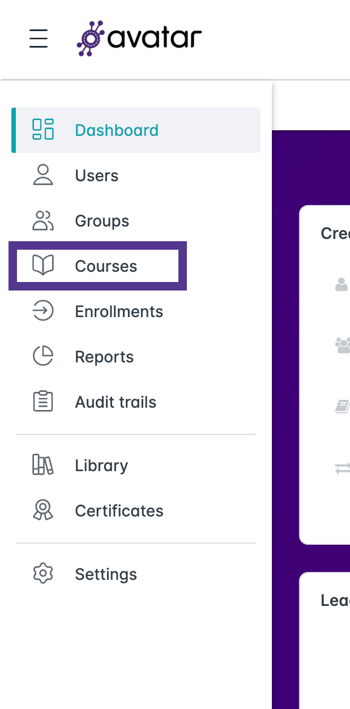
- On the left-hand side navigation menu, click on Courses.
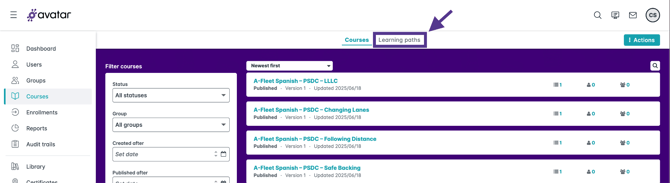
- Look toward the center of the page, directly under the search bar. Click the tab labeled Learning Paths.
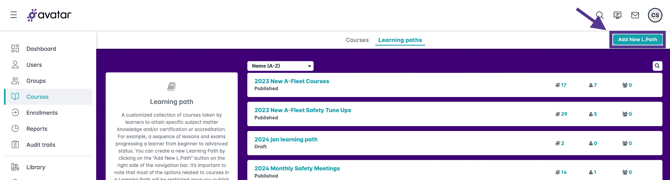
- On the upper right, click on Add New L. Path.
- Enter a name for the new learning path then click Save.

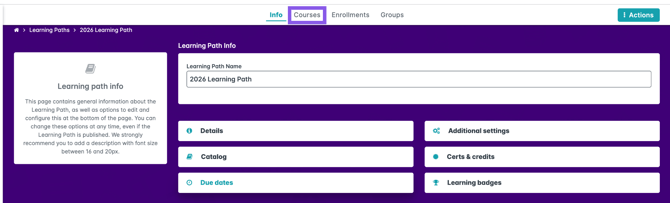
- Once saved, click on the Courses tab on the top of the screen.
- Click on Add Courses to Path.
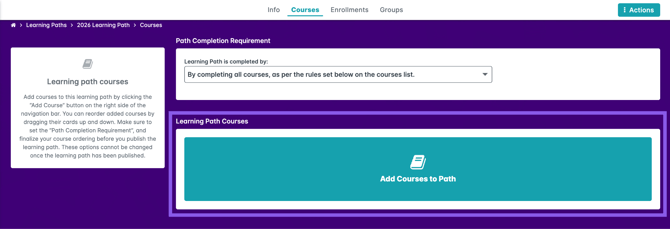
- Select as many courses as needed from the courses window that pops up, then click Add.
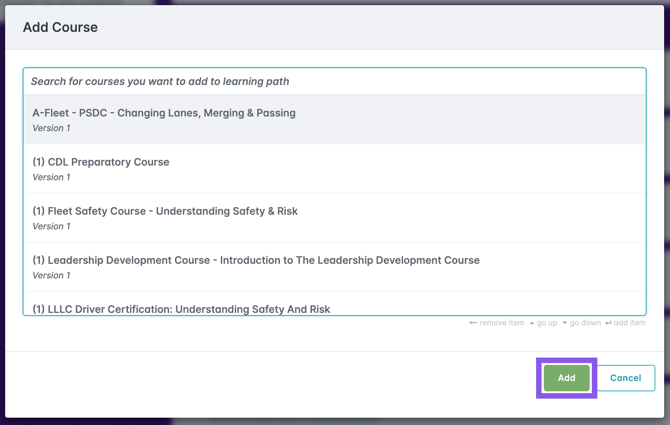
- At this stage, you may optionally:
- Set the order of courses by dragging and dropping them.
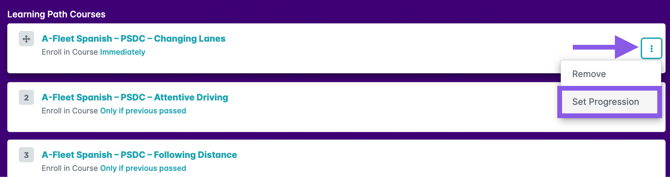
- Set the progression of how learners are enrolled in each individual course by clicking on the three dots on the right of each course, then clicking on Set Progression.
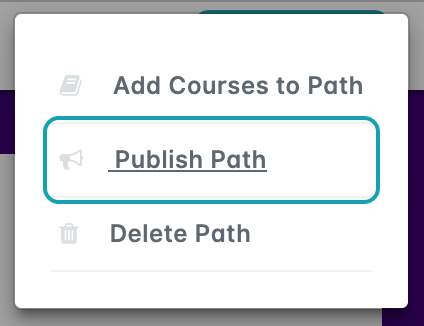
- Once your courses are added and organized, you must publish the learning path in order to enroll users in it. Click on Actions, then click on Publish Path.
- Your learning path is now live and available to enroll learners!