
Section 1: Setup
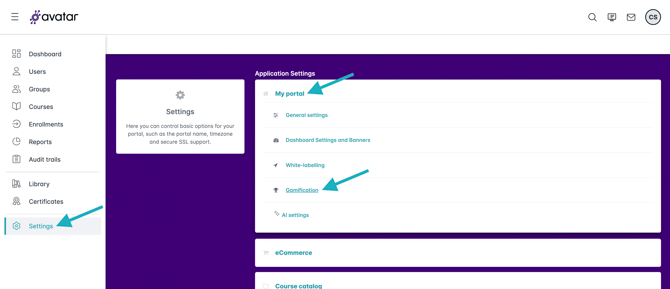
To access and enable Gamification settings:
- Select Settings from the primary Navigation menu, then click into My Portal.
- Click Gamification.
- Toggle Enable Gamification? to ON.
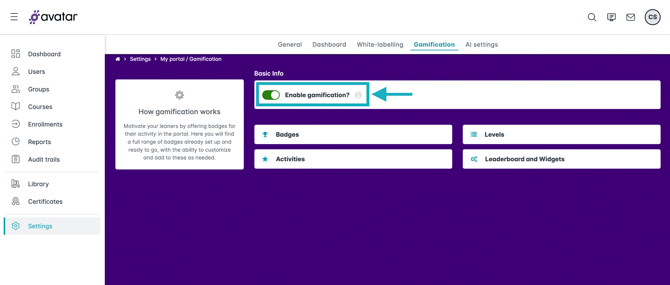
It is recommended you customize your Gamification settings (Badges, Levels, Activities, and Leaderboards) prior to enabling Gamification across your Portal. Once gamification is enabled, this will be live on your portal, and the “My Achievements” tab on the dashboard will be visible for your learners.
You can configure the settings to reward learners for their course achievements and the learning activities they complete in the portal. The badges that learners are awarded have point values, which accumulates to allow them to reach new “Levels” on your portal.
Once the Gamification feature in enabled, each learner will begin to receive the defaulted badges for "Daily Learning" for 5 points each day they complete a course. This can be edited or deleted in the Gamification Settings.
Section 2: Badges
There are three set badge types within your portal:
- Learning badges: awarded to Learners on completion of a Course or Learning Path.
- Activity badges: awarded to Learners for completing specified activities.
- Level badges: awarded to Learners for accumulating specified points amounts.
All badges are customizable - after clicking into the badge, you edit the badge name, upload a new badge image, and specify a points value for the badge.
Adding a Badge to Courses:
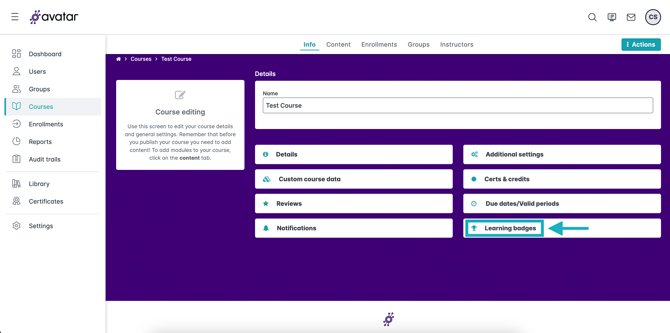
- Click Courses on the main navigation menu, select the course you want to edit, then click on Learning Badges. This option will not appear in Course setting unless gamification is enabled.
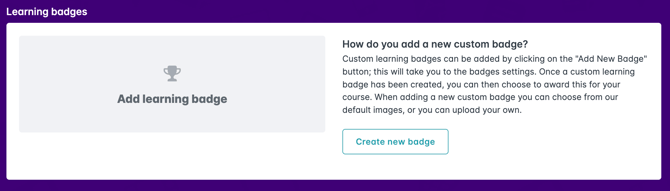
- Choose to Add Learning Badge or Create a New Badge for this course.
- If you click on Add Learning Badge, a pop-up will appear where you can select a badge, select if you want that badge achieved by completion of the course or by a certain score, then Save.
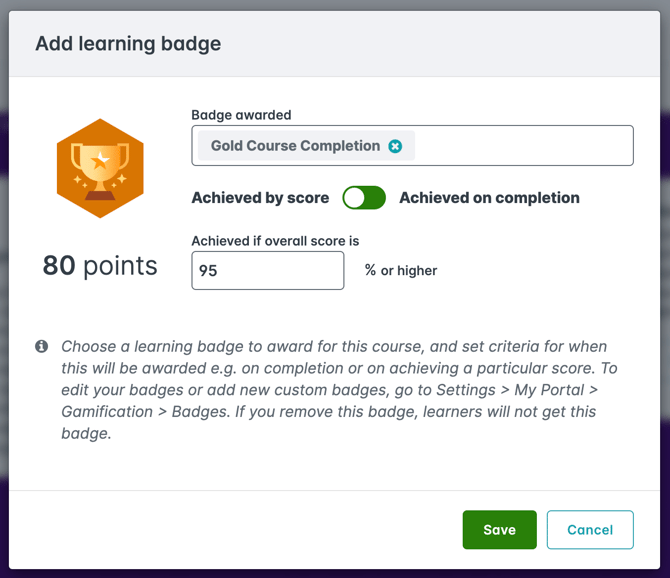
- If you click to Create New Badge, you'll be taken to Gamification settings and will need to return to the course after creating it.
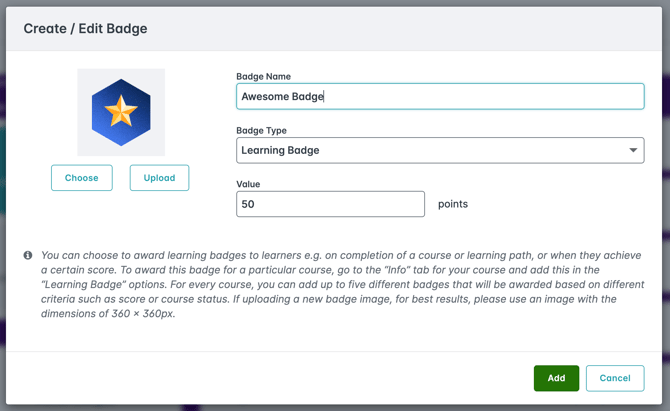
If you choose to use the provided badges, each one is pre-set with point values. These can also be edited in the Gamification Settings under Badges.
Section 3: Leaderboard
Once Gamification is in play, the Leaderboard will be available to view on your home Dashboard screen. The Leaderboard is designed to keep track of the points and badges achieved by learners through ranks. From here you can view each learners
- Level reached
- Number of points achieved
- Number of badges achieved
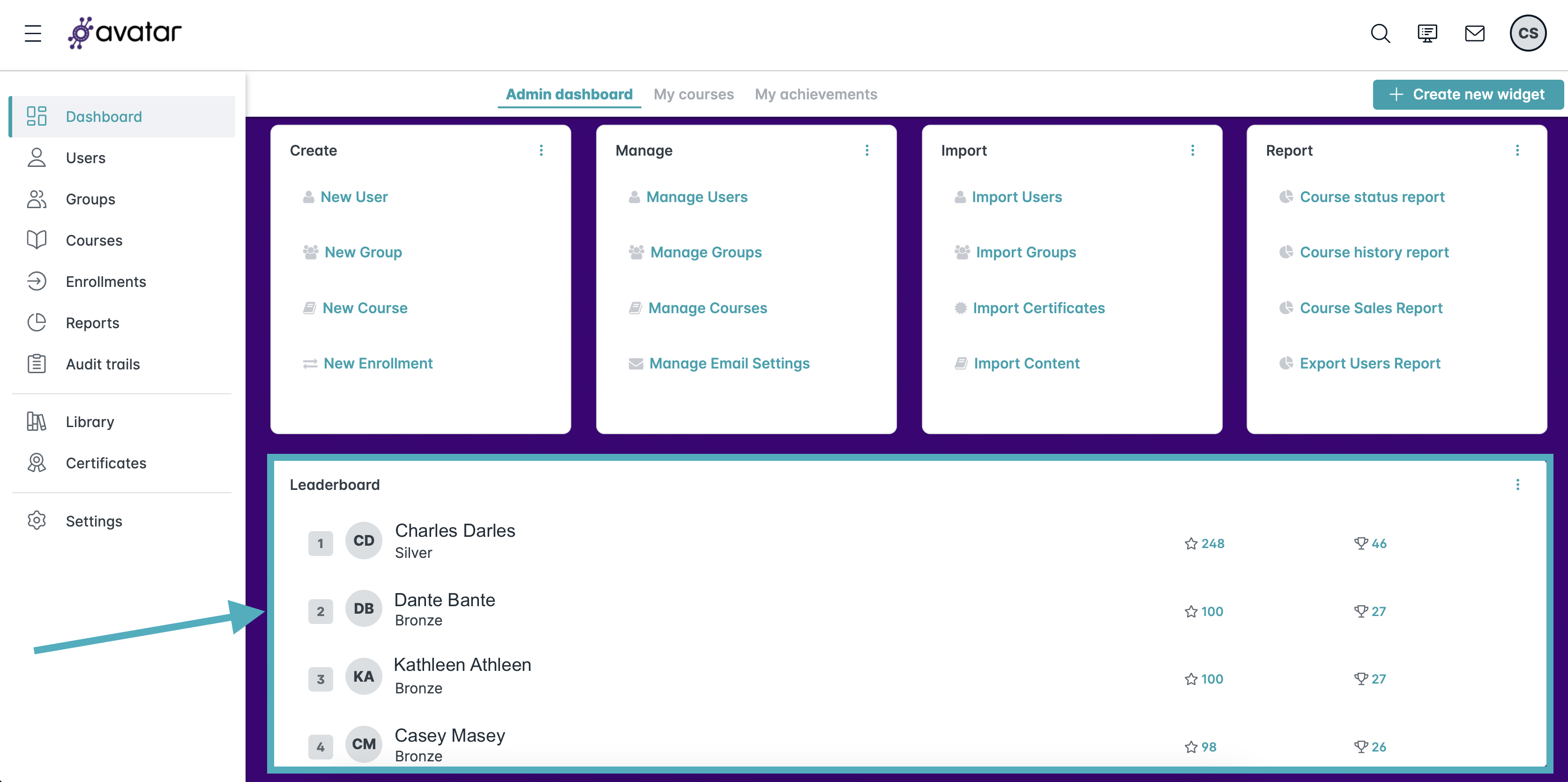
Each learner can also view the Leaderboard and their own achievements by choosing the My Achievements option on the top of their dashboard.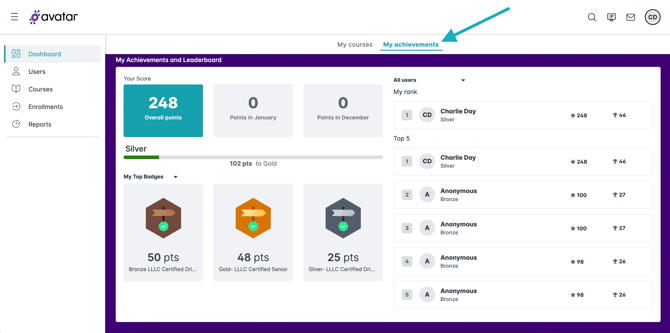
Good luck and let the games begin!