
Table of Contents
Resetting Another User's Password
Resetting Your Own Password
Getting Locked Out
Resetting Another User's Password
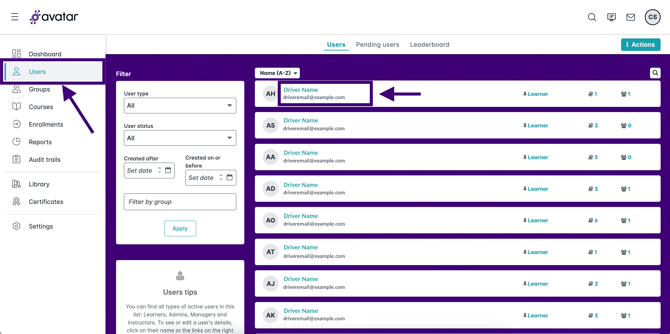
- From the admin dashboard, click on Users, then click on the name of the user whose password you want to reset.
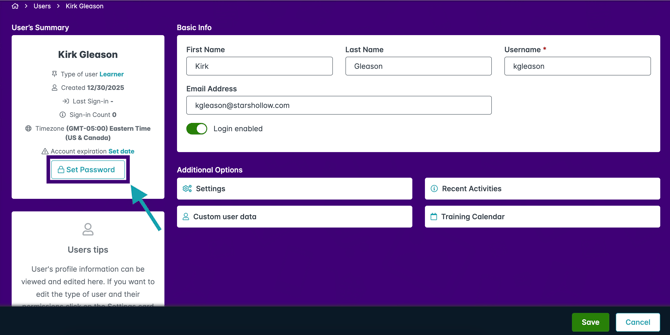
- Click on Set Password under the user's name.
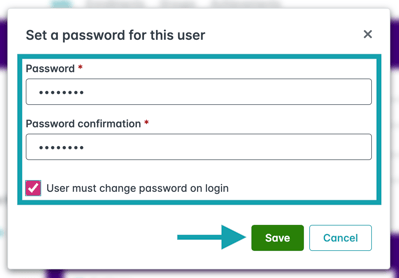
- Set a new password for the user, and check the box for User must change password on login so the learner can choose their own password next time they log in. Click Save.
Resetting Your Own Password
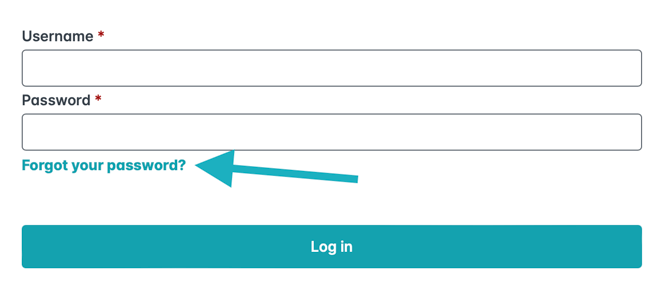
- Go to your company's portal log-in page and click Forgot your password?
- Enter your email and click Send.
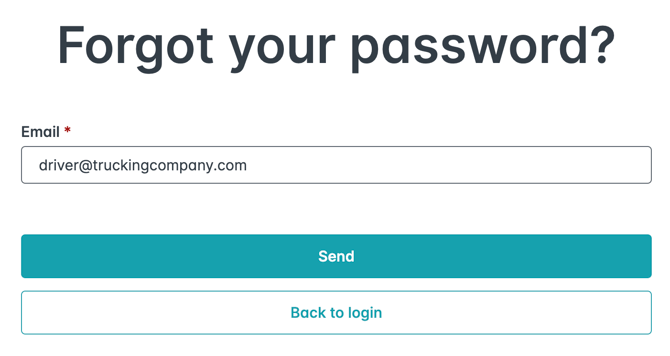
- Check your email! You should receive a link to reset your password.

Getting Locked Out
Please note: After multiple failed attempts at logging in, the system will lock a user out. Using the "Forgot Password" option described above will unlock the account immediately. An admin resetting the password won't give the user immediate access, they would need to wait 24 hours to try and log back in.