
View Compliance Rules
First, verify what rules (if any) are currently active for the user:
-
Go to the team member’s profile.
-
Select the Three Dots Menu > View > Compliance Rules.
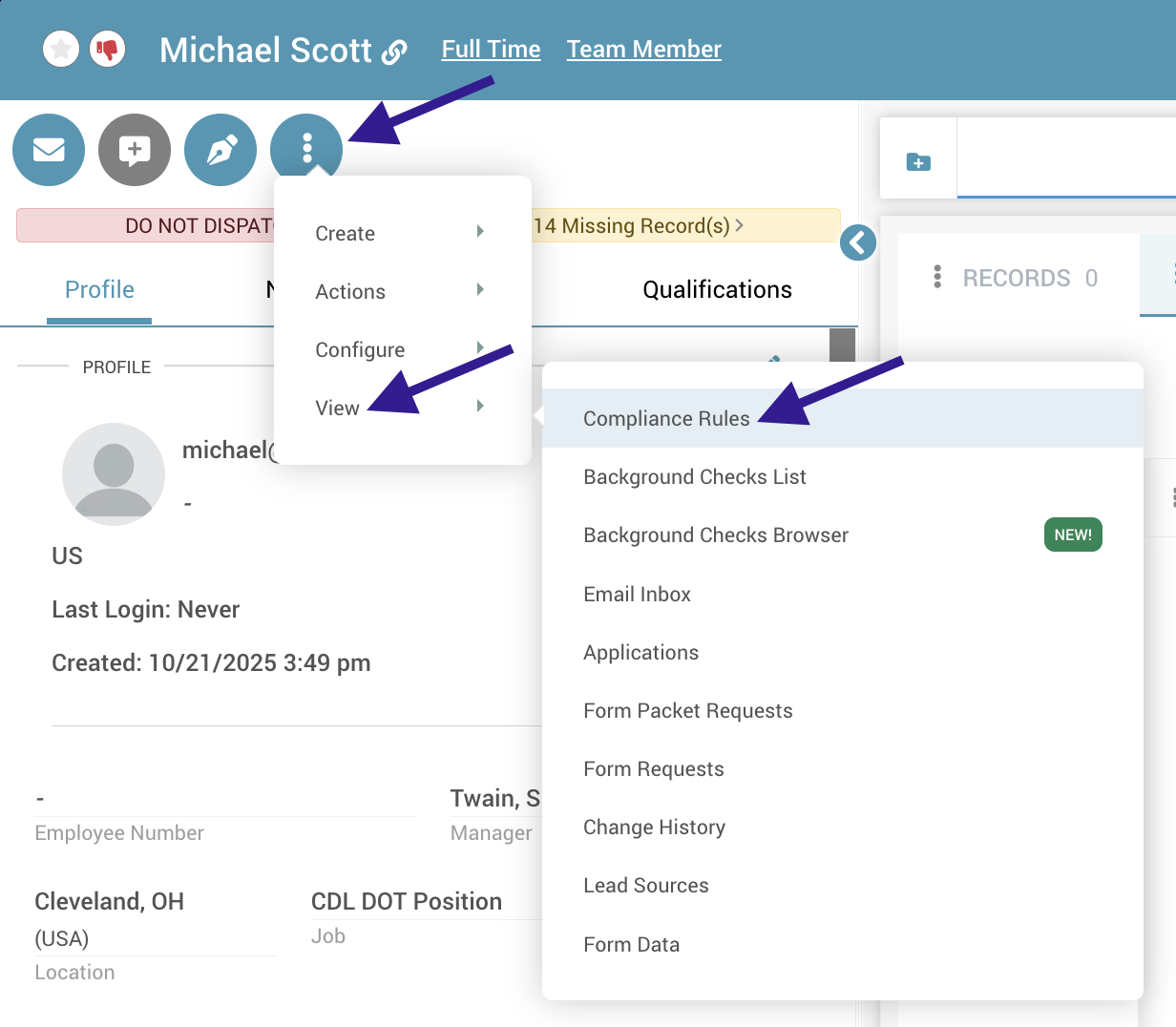
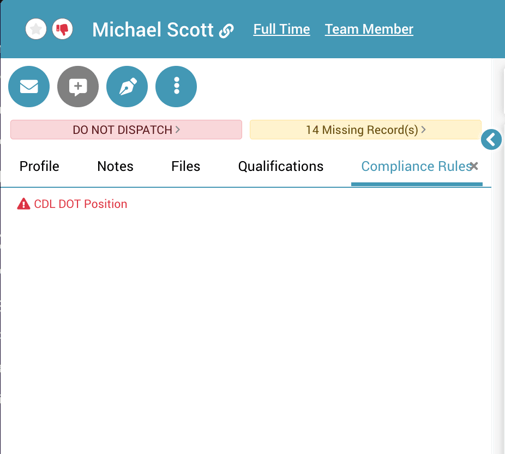
- A new tab will open showing you any compliance rules that are applying to that team member.
Troubleshooting Checklist
If no compliance rules are showing for the team member, use the following list to troubleshoot.
-
User Status: The user must be an Active Team Member. Compliance monitoring will not run for Candidates. If you need to, approve a candidate and switch their status to an active one.
-
Qualification Date: Monitoring only begins on the Qualification Date. Ensure this field is not empty and is set to today or a past date.
-
Rule Criteria: Verify that the team member’s profile information (Job, Location, Manager, Group, etc.) matches the specific criteria set in your Compliance Rule settings.
-
Manual Update: If all settings are correct but rules are still missing, manually run compliance to refresh the profile.
-
If you have verified the steps above and compliance is still not tracking, please contact our Support Team for assistance.