
When a new administrative employee joins your team, they need quick access to DriverHub to begin their duties. This guide walks you through the process of creating a new user profile, assigning the correct status, and placing them in the correct Groups to ensure they have the permissions required to do their job.
How to Create an Admin User
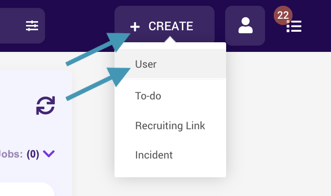
- At the top right of DriverHub, click Create > User.
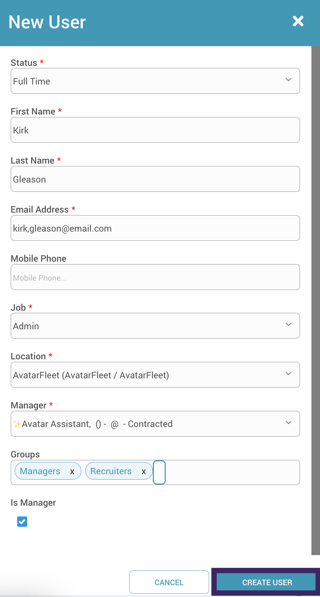
- In the user creation window, select an active status (Full Time, Part Time, or Contracted), then complete the required fields such as name, address, job and location.
- Add the user to the appropriate Groups based on their role. System rights are based on groups, so at a minimum, an administrative user should be in the Recruiters group, Managers group, or both. The Site Admins group provides top-level access.
- Check the Is Manager checkbox. Checking this box allows the user to manage employees' compliance and ensures their name appears in manager selection drop-down lists throughout the system.
- Click Create User.
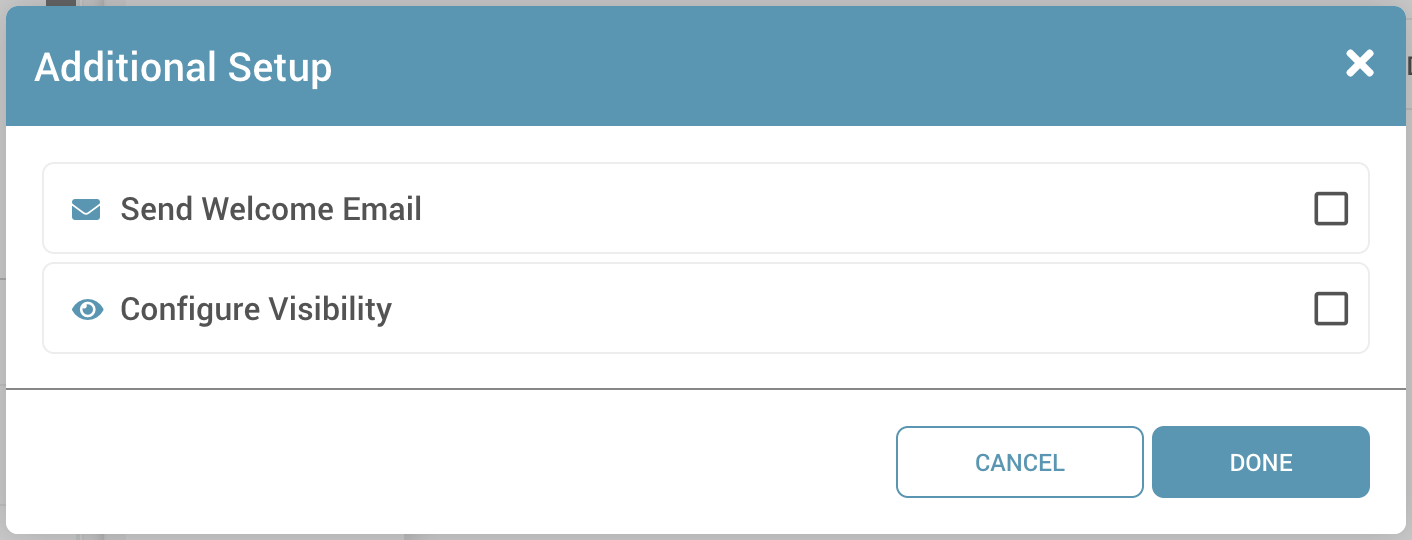
- Once the user is created, an Additional Setup window will appear with two action items:
-
Send Welcome Email: Click this to invite the user into the system so they can configure their own password.
-
Configure Visibility: Use this tool to determine who the admin can see (oversight), whose compliance they monitor (responsibility), and who they can recruit (recruiting visibility). If the new admin requires the exact same view as an existing colleague, use the Copy From User button to save time. Otherwise, add and remove rules as needed. More information on the specifics of configuring visibility can be found here.
- Note: If you skipped the Additional Setup window or closed it by mistake, you can always complete these steps later by clicking the Three Dots Menu on the user's profile and selecting Actions > Send Welcome Email to invite them or Configure > Visibility to adjust their settings.
-
- The new account is now ready for use!
Frequently Asked Questions
-
Q: What is the difference between the Is Manager checkbox and the Managers Group?
-
A: The Is Manager checkbox is a flag that puts the user's name in manager-selection dropdown lists throughout the system and allows them to be assigned to drivers for compliance monitoring. The Managers Group grants the actual software rights to view and edit specific pages. You generally need both.
-
-
Q: I sent the Welcome Email, but the user didn't receive it.
-
A: Ask the user to check their spam/junk folder. If it is not there, you can resend it using the instructions in the section above.
-
If you need assistance with any of the above, please reach out to our Support team.